

Role: Teacher
Estimated time: 5 minutes (keep it handy as a reference)
Every question in TeachersAI holds one or more responses: the part the student actually answers. There are currently nine response types. Picking the right one is like choosing between a worksheet, a quiz and a sketchbook: it shapes what students can show you, and how the marking gets done.
This guide covers what each type is for, the settings worth knowing, and who marks it.
All nine at a glance
Response type | Best for | How it's marked | On paper? |
|---|---|---|---|
Short Answer | A word, a number or a sentence or two | By the AI, guided by your accepted answers and question context. You confirm. | Yes |
Long Answer | Paragraphs, extended responses, essays | By the AI, or with a rubric. You confirm. | Yes |
Choice | Single choice, multiple choice, true or false, picture cards | Automatically, against the answer you tick | Yes |
Matching | Terms and meanings, causes and effects | Automatically | Yes |
Sort | Putting events or steps in order | Automatically | Yes |
Fill in the blank | Cloze passages, typed or from a word bank | Automatically | Yes |
Rating | Confidence checks and self-reflection | Not scored by default | Yes |
File upload | Photos, documents or video of work done off screen | By you, or not scored at all | No, screen only |
Drawing | Diagrams, timelines, labelled sketches | By you | Yes |
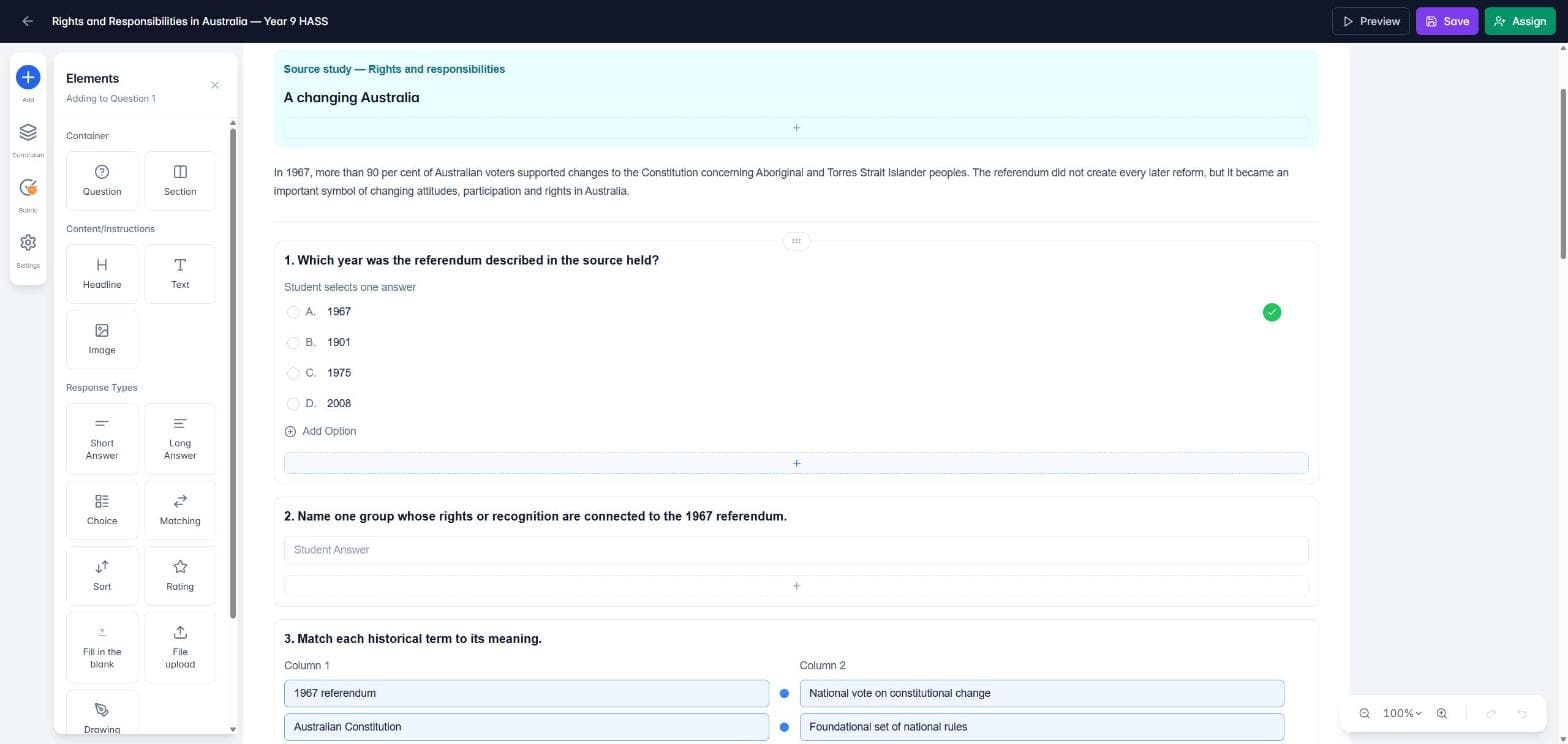
To add a response, click the + bar inside a question. The Elements panel opens on the left with every response type under Response Types. See How do I add questions to an assessment?
Short Answer
Use it for: quick recall and short explanations, where there's a clear right answer but students write it in their own words.
Accepted answers: add every answer you would accept, so TeachersAI knows what correct looks like.
Also in settings: placeholder text, a character limit and spellcheck.
Marking: the AI suggests a mark and feedback. Add context to the question (what a good answer includes) to sharpen it. You check and confirm.
Long Answer
Use it for: paragraphs, explanations, persuasive writing and extended responses.
Character/Word limit: set a limit in words or characters. Tick Hard stop to stop students going over it, and turn on Character display to show them a counter.
Rich text gives students a formatting toolbar. Students can also open the box full screen.
Marking: the AI suggests a mark and feedback against your question context, or you can mark it with a rubric (select the question and turn on Switch to Rubric). See How do I create a marking rubric?
Choice
Use it for: quick checks of understanding, and questions with one or more clear right answers.
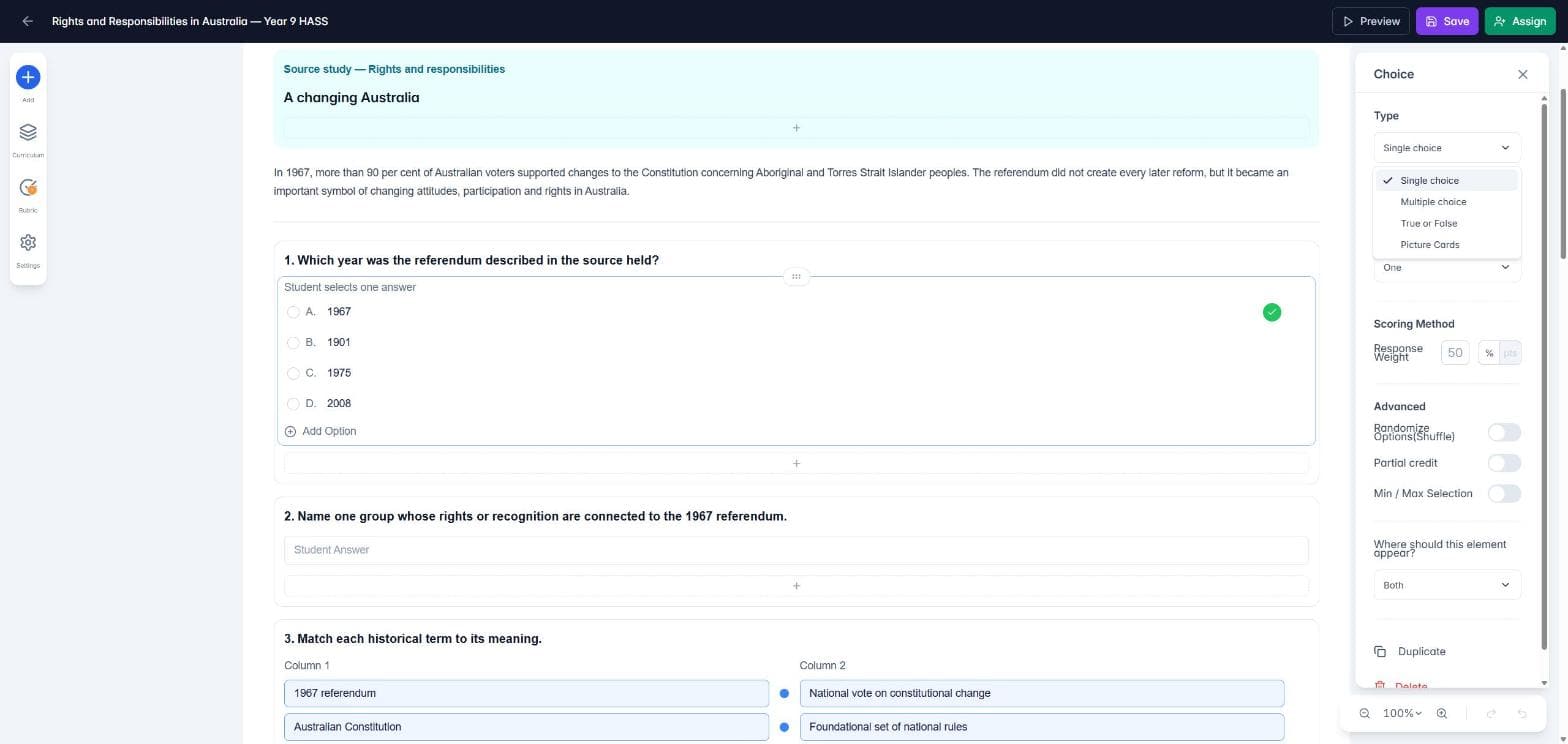
Type: Single choice, Multiple choice, True or False, or Picture Cards (an image on each option, great for younger students).
Tick the correct option on the page. For multiple choice, turn on Partial credit to give marks for each correct option chosen.
Marking: automatic, against the answer you tick.
Matching
Use it for: pairing terms with meanings, people with events, or causes with effects.
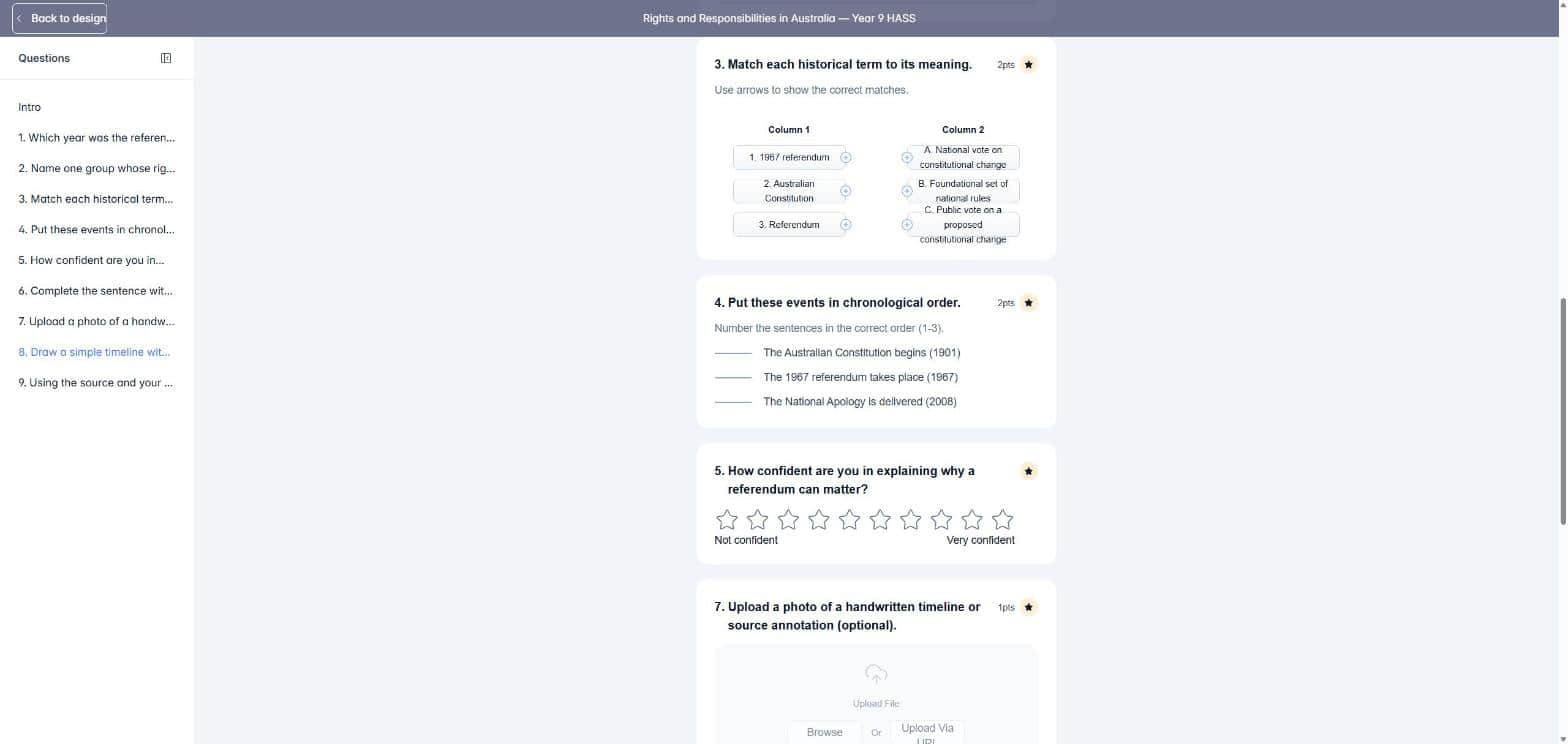
Enter the pairs side by side in Column 1 and Column 2. Students see Column 2 shuffled and draw lines to match.
Turn on Partial credit to give marks for each correct pair.
Marking: automatic.
Sort
Use it for: putting events in chronological order, sequencing the steps of a process, or ranking.
Enter the items in the correct order. Students see them shuffled.
Turn on Partial credit to give marks for items in the right place.
Marking: automatic.
Fill in the blank
Use it for: cloze passages, key vocabulary and spelling in context.
Type the full sentence, select the word students should supply, and click Convert to Blank. Click a blank to add other answers you'll accept.
Mode: students type into each blank, or drag words from a word bank. You can add extra words to the bank that don't fit anywhere.
Marking: Per blank gives a share of the points for each correct blank. One mark for all gives the points only when every blank is right.
Always make blanks with Convert to Blank. Typing brackets around a word won't create a blank.
Marking: automatic. Capital letters and extra spaces are ignored, so "Sun", "sun" and " sun " are all correct.
Rating
Use it for: confidence checks ("How sure are you?"), self-assessment and quick reflections.
Choose the number of stars (2 to 10) and add a label at each end, such as "Not confident" and "Very confident".
Marking: not scored by default. If you set it to Scored, any rating earns the question's full points, since there's no right answer.
File upload
Use it for: evidence of work done off screen, such as a photo of a model, a scanned worksheet or a short video of a performance.
Accepted file types: PDF, Word, PowerPoint, Excel, text, JPEG, PNG, MP4 and MOV. Untick any you don't want.
Limits: by default, one file of up to 50 MB. Under Advanced you can allow up to 10 files and up to 100 MB per file.
Marking: choose Include in marking to mark the file yourself, or Supporting evidence only to collect it without marks. Use Supporting evidence only when the question has another scored response.
Marking: by you. Open the file on the grading page and enter the points. File upload works on screen only and isn't printed.
Drawing
Use it for: labelled diagrams, timelines, maps, number lines and sketches.
Background: Blank, Linear Grid or Dotted Grid. You can also upload an image for students to draw on, such as a map or diagram to label.
Students get a pen, lines, shapes, text, an eraser, colours, and undo and redo.
Marking: by you. AI Grade skips drawings, and you'll need to give each drawing a mark before you can finalise the grade.
Using more than one response in a question
A question can hold several responses, such as a Choice followed by a Short Answer asking students to explain their pick. Click the + bar again to add the second one. Each response has a Response Weight: its share of the question's marks. The weights must add up to 100%.
Screen, paper or both
Most responses have Where should this element appear? in their settings: Both, Screen only or Print only. File upload is always screen only. TeachersAI warns you before you print or assign if a marked question would be left out.