

Role: Teacher
Estimated time: 3–4 minutes
Assigning sends a copy of your assessment to your class. You choose when it opens and closes, who gets it, whether it counts towards the final grade, and how the AI marks and writes feedback. Your original stays in My Assessments, ready to reuse.
What this guide helps you do
Open the Deliver to Student screen
Set start and due dates and times, and add a timer
Allow late submissions and set a late penalty
Assign to the whole class or to specific students
Decide whether the assessment counts towards the final grade
Set how the AI grades and writes feedback
Before you start
Check your questions, correct answers and any rubric. Use Preview to see exactly what students will see.
Check the right class is selected in the class menu at the top left. The assessment goes to that class.
Click Save.
Step 1: Open the Deliver to Student screen
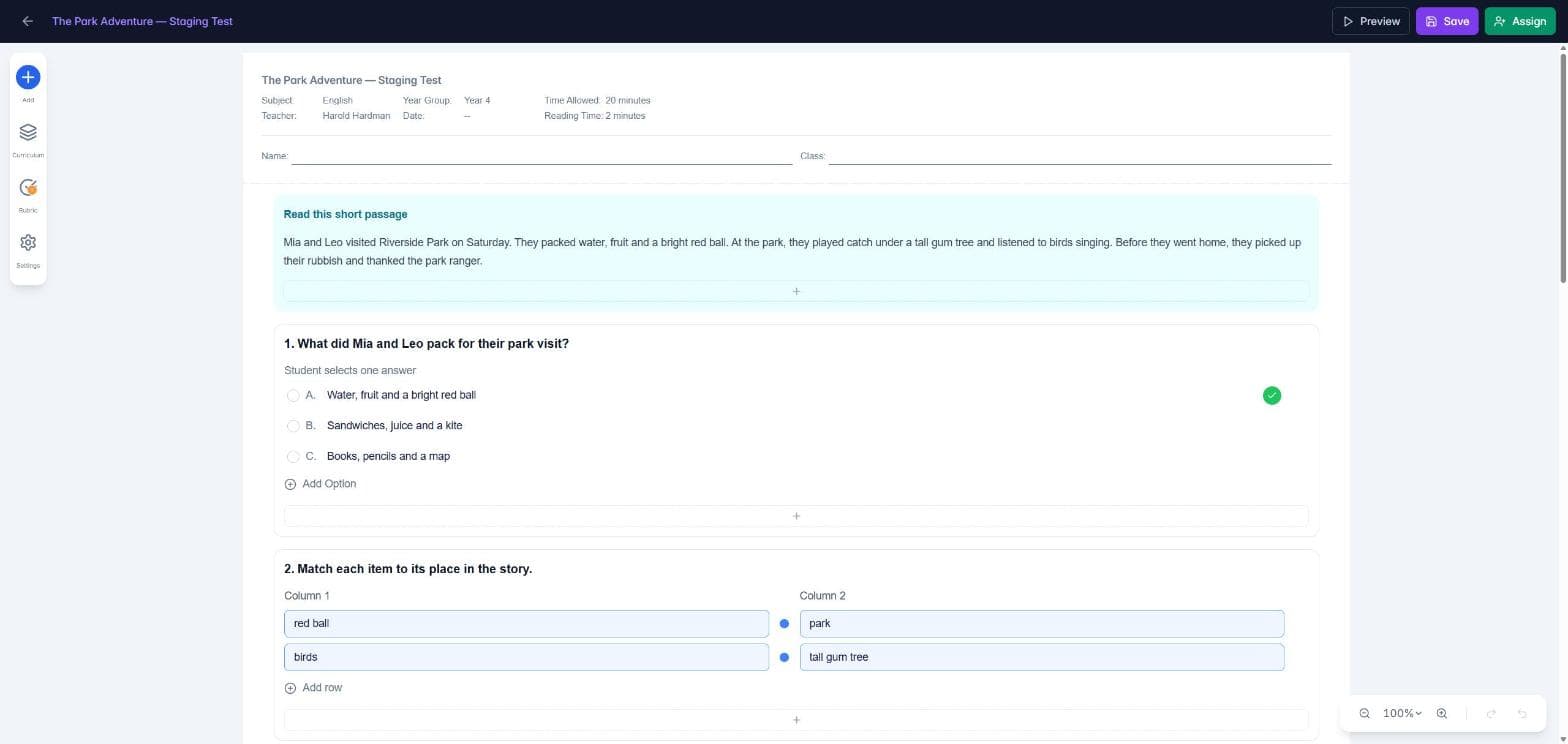
In the Assessment Builder, click Assign at the top right. The "Let's assign this to your Students" screen opens.
Quick option: Assign to Class on an assessment card in My Assessments opens a short window where you only pick students. It doesn't include the timing, grade or feedback options below, so use the Assign button in the builder when you need those.
Step 2: Check the assessment card
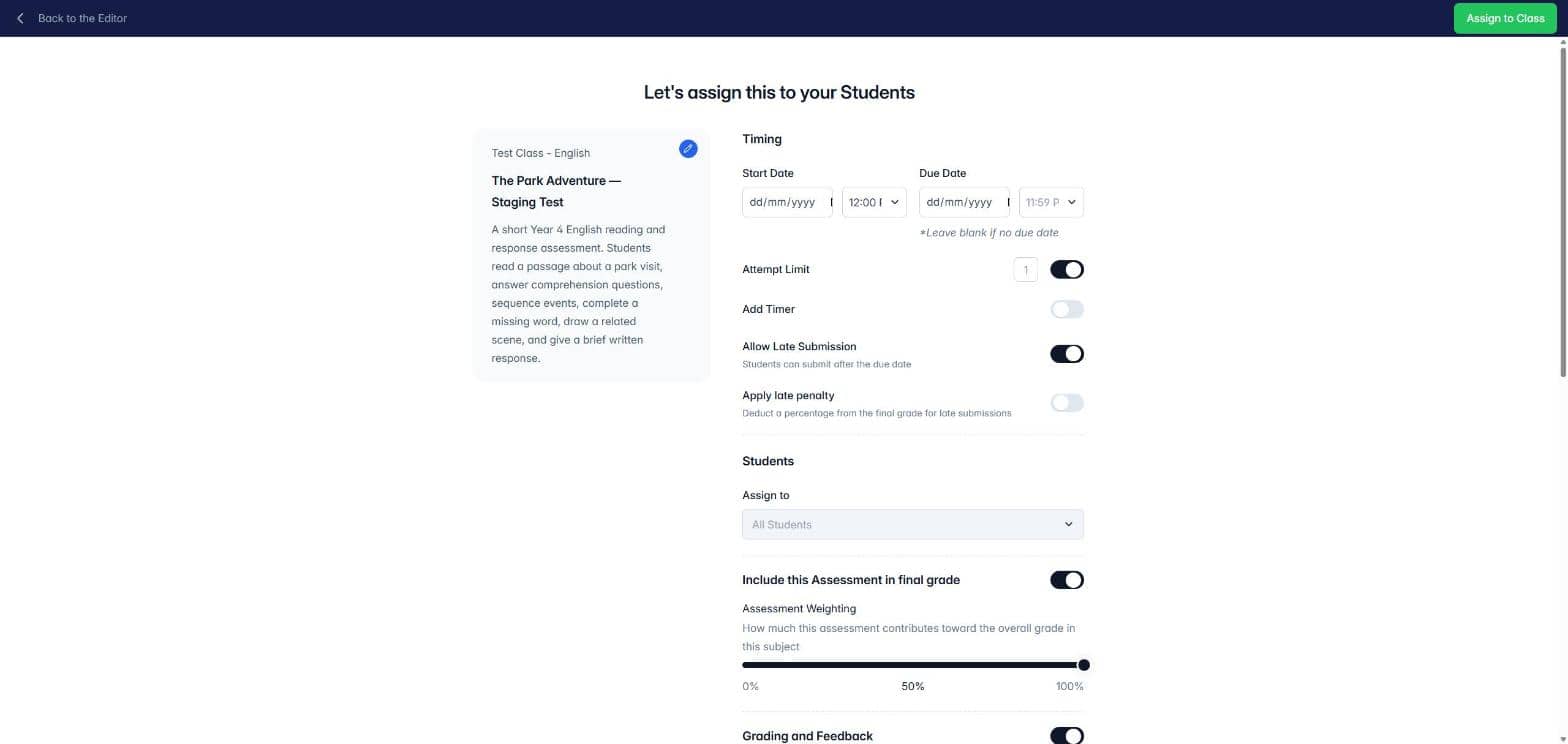
The card on the left shows the class, subject, title and description. Click the pencil icon to change the title or description, or to add curriculum and tags, then click Save.
Step 3: Set the timing
Start Date: the date and time the assessment opens. Leave it blank to open it straight away. Until then, students see it on their class page marked Scheduled, with the date it opens, but they can't start it.
Due Date: the date and time it closes. If you don't choose a time, it is due at 11:59 PM. Leave it blank if there is no due date. The due date must be after the start date.
Add Timer: turn it on and set the hours and minutes students have. When time runs out, their latest answers are submitted automatically.
Allow Late Submission: lets students submit after the due date.
Apply late penalty: takes a percentage off late work. Set the Deduction (% of raw grade); it starts at 10%. It only applies when switched on.
Step 4: Choose your students
Under Assign to, choose:
All Students (the default) to give it to the whole class.
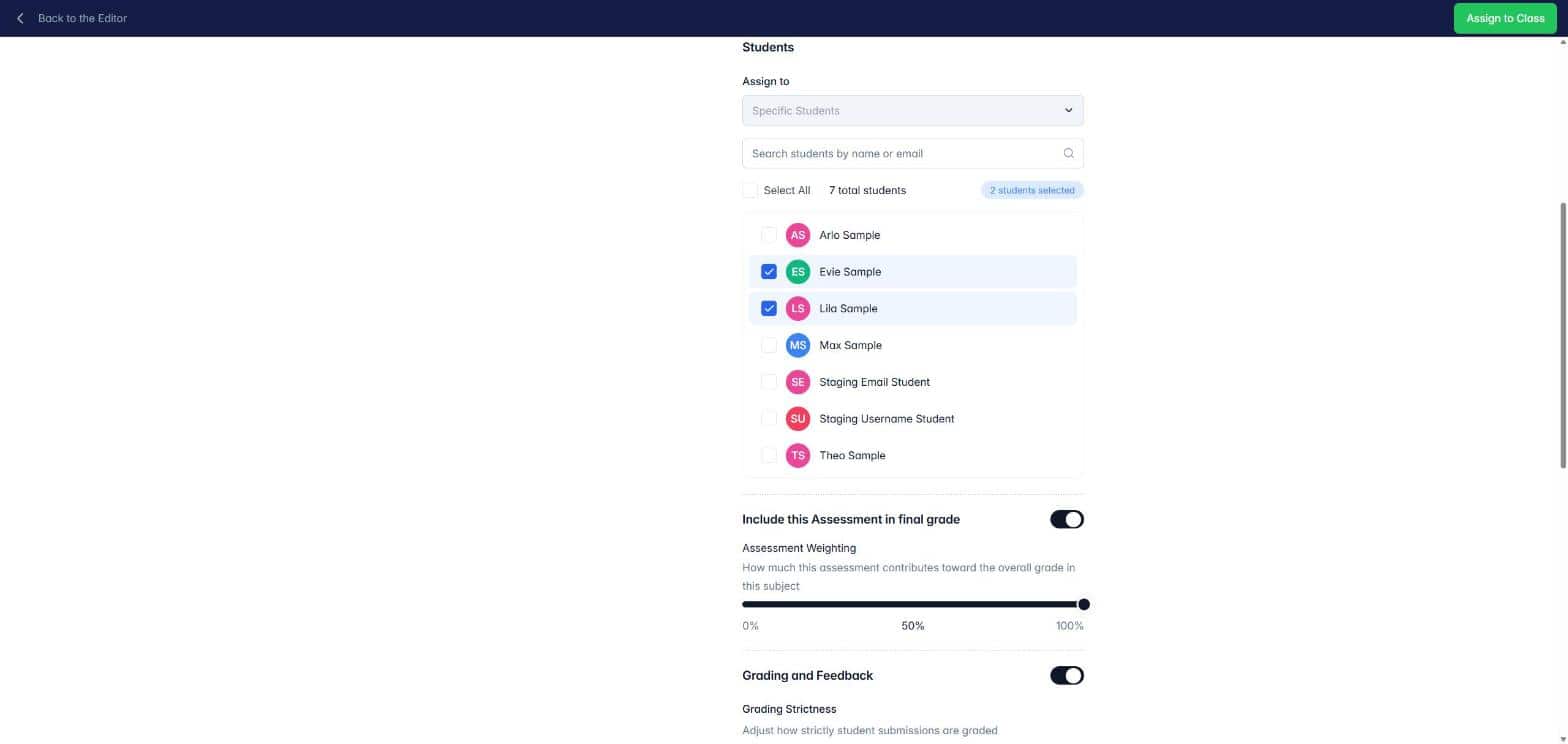
Specific Students for a group. Search by name or email and tick each student, or use Select All. The number selected shows on the right, so check it before you assign.
Step 5: Decide whether it counts
Turn on Include this Assessment in final grade when it should count towards the subject grade, then drag the Assessment Weighting slider to set how much it contributes. Turn it off for practice tasks and formative checks.
Step 6: Set grading and feedback
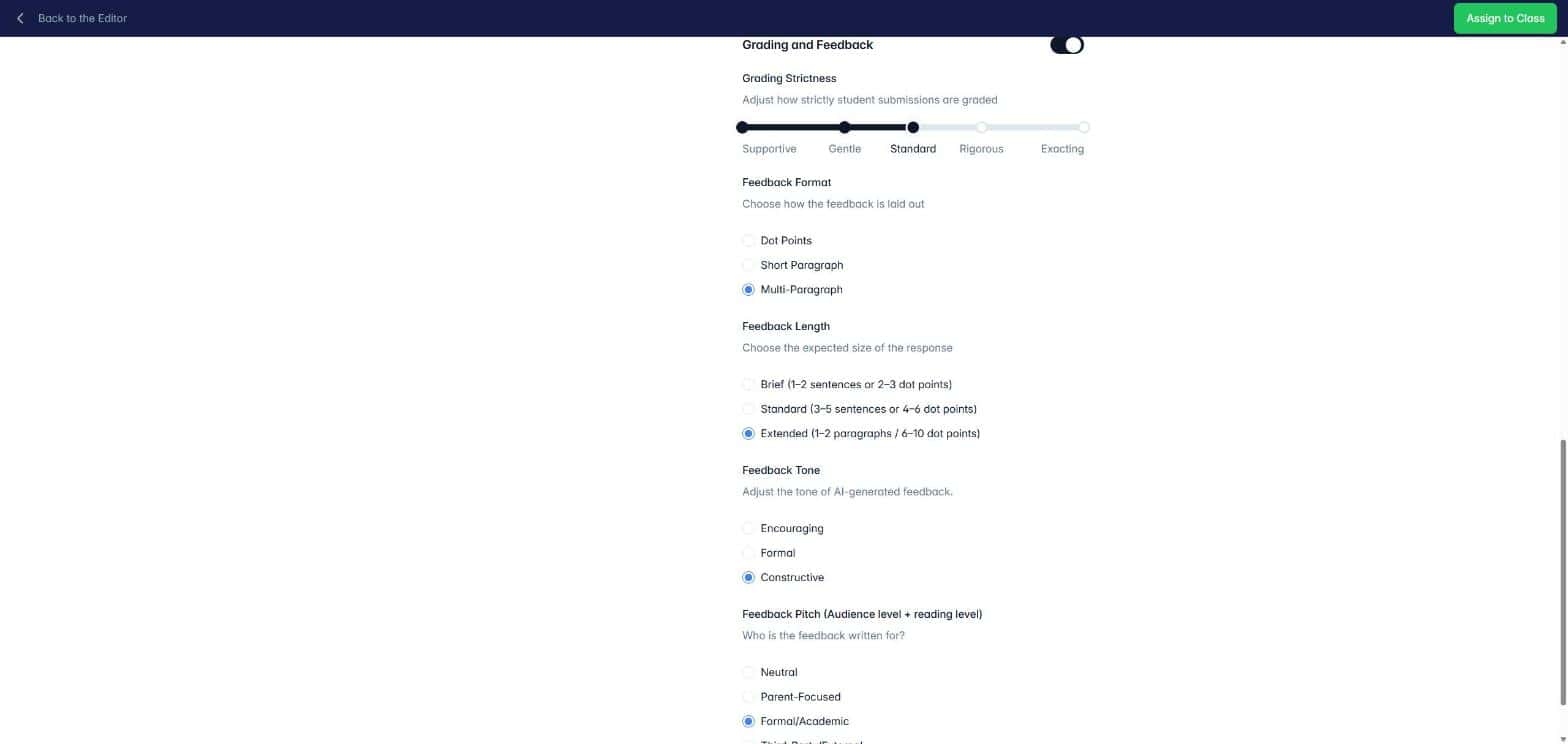
The Grading and Feedback switch controls how the AI marks and what its feedback sounds like. When it's on, the AI follows the settings below. When it's off, the AI marks with its standard settings.
Setting | Options | Starts at |
|---|---|---|
Grading Strictness | Supportive, Gentle, Standard, Rigorous, Exacting | Standard |
Feedback Format | Dot Points, Short Paragraph, Multi-Paragraph | Multi-Paragraph |
Feedback Length | Brief (1–2 sentences or 2–3 dot points), Standard (3–5 sentences or 4–6 dot points), Extended (1–2 paragraphs or 6–10 dot points) | Extended |
Feedback Tone | Encouraging, Formal, Constructive | Constructive |
Feedback Pitch (who the feedback is written for) | Neutral, Parent-Focused, Formal/Academic, Third-Party/External | Formal/Academic |
Strictness only changes how open-ended and rubric-marked questions are marked. Questions with a set answer, such as Choice, Matching, Sort and Fill in the blank, are always marked against your answer key.
Think about who will read the feedback. Younger students usually get more from Dot Points or a Short Paragraph, kept Brief, with an Encouraging tone.
Step 7: Assign it
Check your settings, then click Assign to Class at the top right. If a marked question is set to Print only, TeachersAI warns you first, because students won't see it on screen.
A confirmation screen tells you students can now access the assessment. Click Go to Assessment Details to follow submissions and marking, or find it later under Assessments on the Assigned tab.
Good to know
Each assignment is its own copy. Editing the original in My Assessments later doesn't change work that is already assigned or submitted. To send an updated version, edit the original and assign it again.
You stay in control. Every AI mark and comment can be checked and changed before you release results to students.
Need to move a due date or give a student another go? See How do I change an assessment due date? and How do I reopen an assessment for resubmission?