

Role: Teacher
Estimated time: 2–3 minutes
Before you start
Sharing sends another teacher an invitation to receive their own copy of an assessment. Your original assessment stays in My Assessments.
1. Open the assessment you want to share
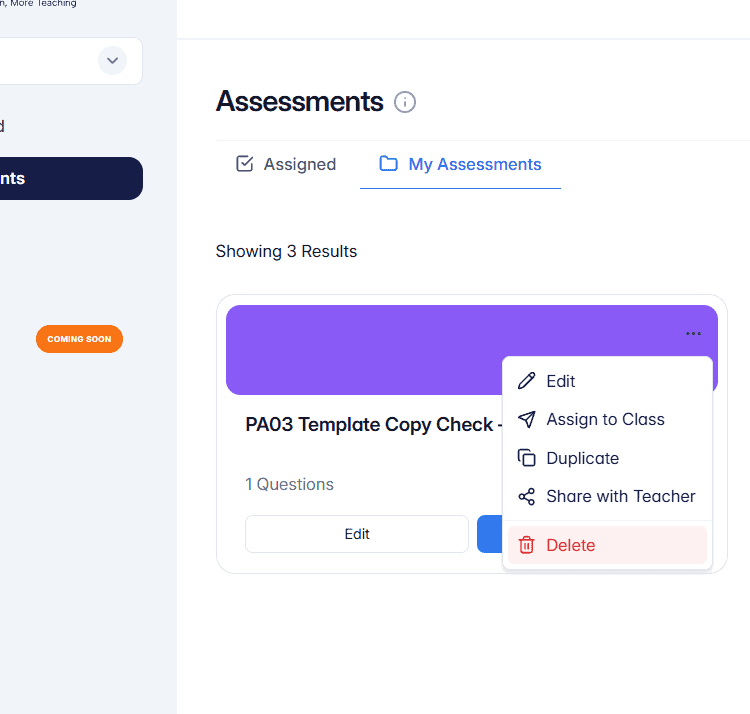
Go to Assessments > My Assessments. Open the three-dot menu on the assessment and choose Share with Teacher.
2. Select the teacher
Search for the teacher by name or email, select them, then choose Send Invitation.
3. Ask the teacher to accept
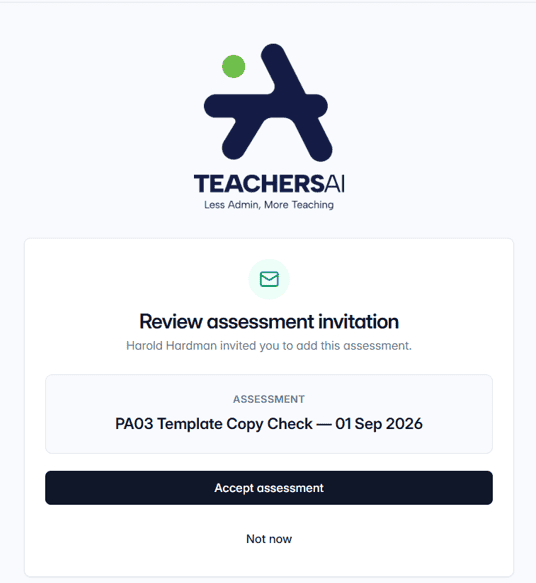
The invited teacher receives an email. They should open it while signed in to the invited TeachersAI account, choose Review & accept, then choose Accept assessment.
4. Find the shared copy
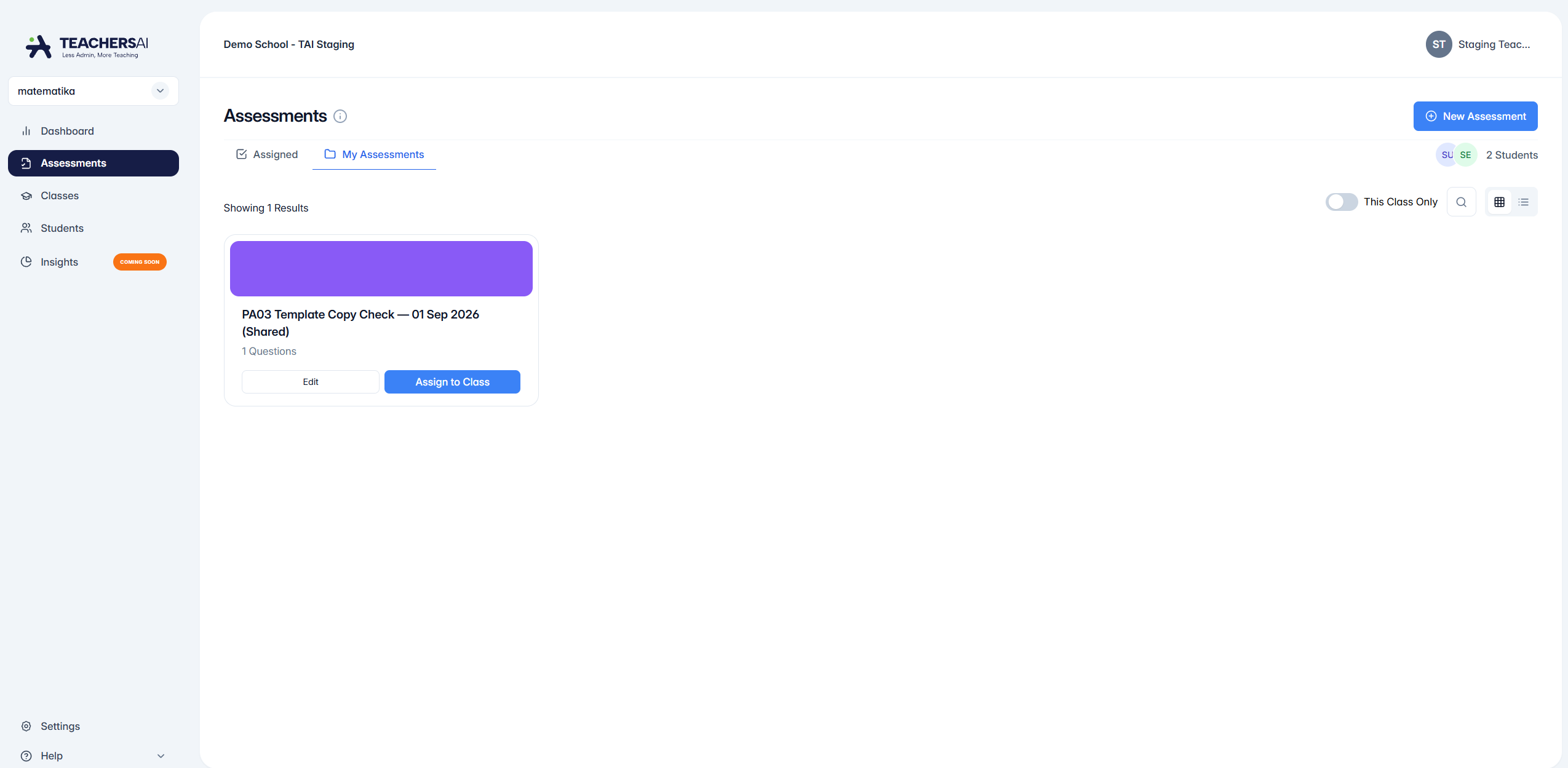
After the invitation is accepted, a separate copy appears in the recipient's My Assessments.
If you cannot see it straight away, turn off This Class Only to show assessments shared with you from other classes.
They can then edit the copy or choose Assign to Class to deliver it to their students.
Good to know
Sharing does not assign an assessment to students. The recipient still needs to choose Assign to Class.
The original assessment is unchanged when the other teacher accepts.