
Role: Teacher
Estimated time: 3–4 minutes
When TeachersAI marks open-ended work and writes feedback, it follows the Grading and Feedback settings you choose for that assessment. Think of it as briefing a co-marker before they pick up the pile: how hard to mark, and how to talk to the students. You set the brief, and you still check every mark before anything goes back to students.
What this guide helps you do
Find the Grading and Feedback settings
Understand what each setting changes
Know which questions the settings affect, and which they don't
Pick sensible settings for your class
Where to find them
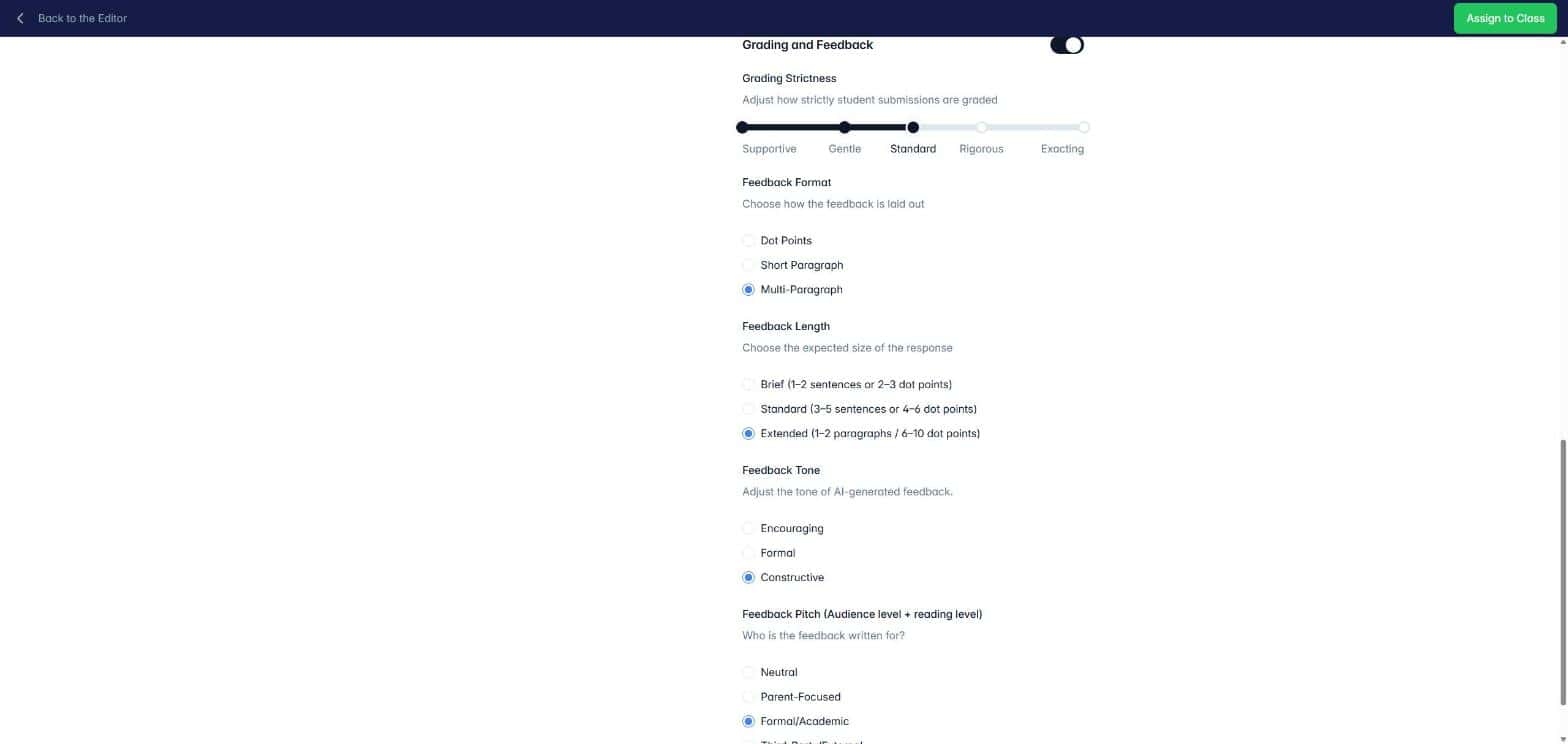
The settings sit at the bottom of the Deliver to Student screen, which opens when you click Assign in the Assessment Builder. See How do I assign an assessment to my class?
One switch turns the whole section on or off:
On: the AI follows your settings when it marks and writes feedback.
Off: the AI marks with its standard approach.
The settings are saved with each assessment, so every class and task can have its own.
What each setting does
Setting | Options | Starts at | What it changes |
|---|---|---|---|
Grading Strictness | Supportive, Gentle, Standard, Rigorous, Exacting | Standard | How strictly the AI judges open-ended answers against your question context and rubric |
Feedback Format | Dot Points, Short Paragraph, Multi-Paragraph | Multi-Paragraph | How the feedback is laid out |
Feedback Length | Brief (1–2 sentences or 2–3 dot points), Standard (3–5 sentences or 4–6 dot points), Extended (1–2 paragraphs or 6–10 dot points) | Extended | How much feedback the AI writes |
Feedback Tone | Encouraging, Formal, Constructive | Constructive | How the feedback sounds |
Feedback Pitch | Neutral, Parent-Focused, Formal/Academic, Third-Party/External | Formal/Academic | Who the feedback is written for, and the reading level it uses |
Grading Strictness
Slide left for more generous marking and right for stricter marking. A Supportive setting suits early drafts, practice tasks and younger students. Rigorous or Exacting suits exam preparation and senior work where precision matters. Standard is a sensible middle ground for most classwork.
Feedback Pitch
Choose who will read the feedback. Use Parent-Focused when it's going home, Formal/Academic for senior students, and Neutral when you want plain, general wording.
Which questions they affect
Question type | Strictness | Feedback settings |
|---|---|---|
Short Answer, Long Answer, rubric-marked questions | Yes | Yes |
Choice, Matching, Sort, Fill in the blank, Rating | No. Always marked against your answer key. | A short comment only, such as "Correct!" or "The correct answer is…" |
Drawing, File upload | No. You mark these yourself. | No |
Overall feedback for the student | Not applicable | Yes |
See What response types can I use in an assessment? for how each type is marked.
Suggested starting points
Situation | Try |
|---|---|
Very young students | Supportive or Gentle, Dot Points or Short Paragraph, Brief, Encouraging, Neutral |
Everyday classwork | Standard, Short Paragraph, Standard length, Constructive |
Senior exam preparation | Rigorous, Multi-Paragraph, Extended, Constructive, Formal/Academic |
Feedback going home | Short Paragraph, Standard length, Encouraging, Parent-Focused |
These are starting points, not rules. Run a few submissions, read what comes back, and adjust.
You stay in control
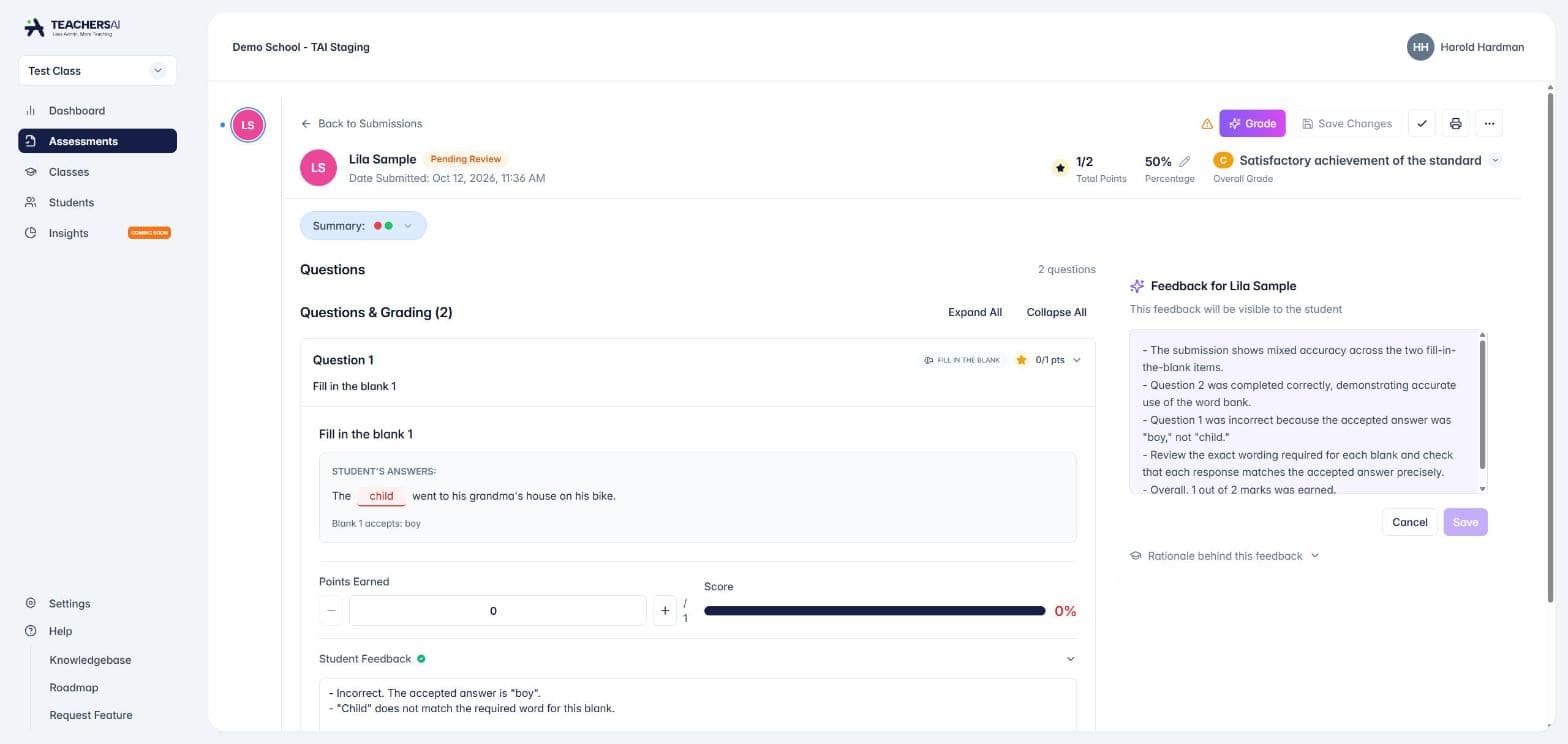
The settings shape the AI's suggestions. You check and confirm every mark and comment on the grading page. See How do I mark work submitted by my students?
Refine is your own editing. When you refine feedback, you're writing it yourself, so these settings don't apply.
The clearer your question context and rubric, the better the AI marks at any strictness. See How do I create a marking rubric?
Nothing reaches students until you finalise and release their results.