

Role: Teacher
Estimated time: 2–3 minutes
This guide walks you through starting a new assessment and what you will see when you land in the Assessment Builder.
Start a new assessment
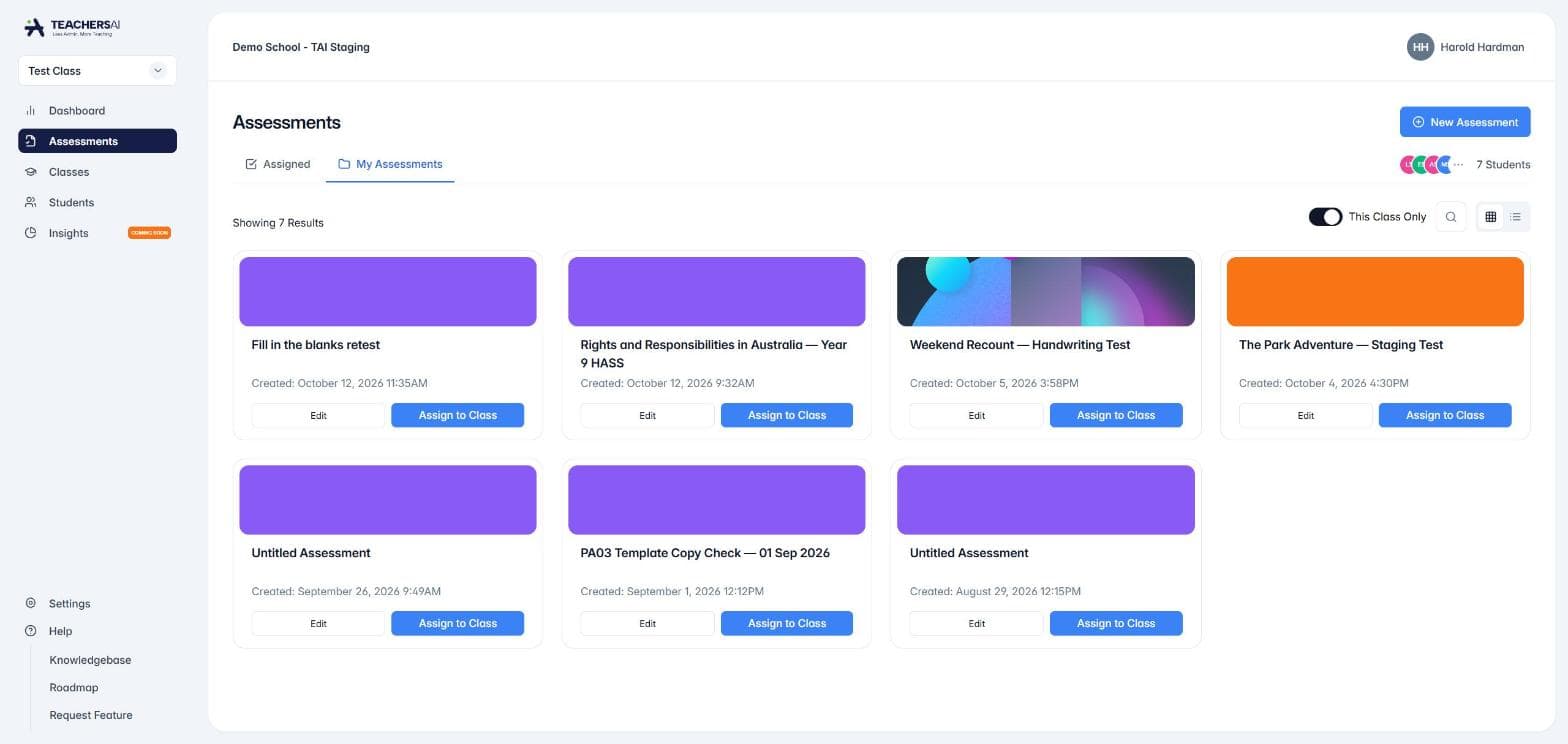
Click Assessments in the left-hand menu.
Open the My Assessments tab. This is your library of master assessments.
Click New Assessment (top right).
The assessment is created for the class selected in the top-left class selector, so check you are in the right class first.
Choose how to create it
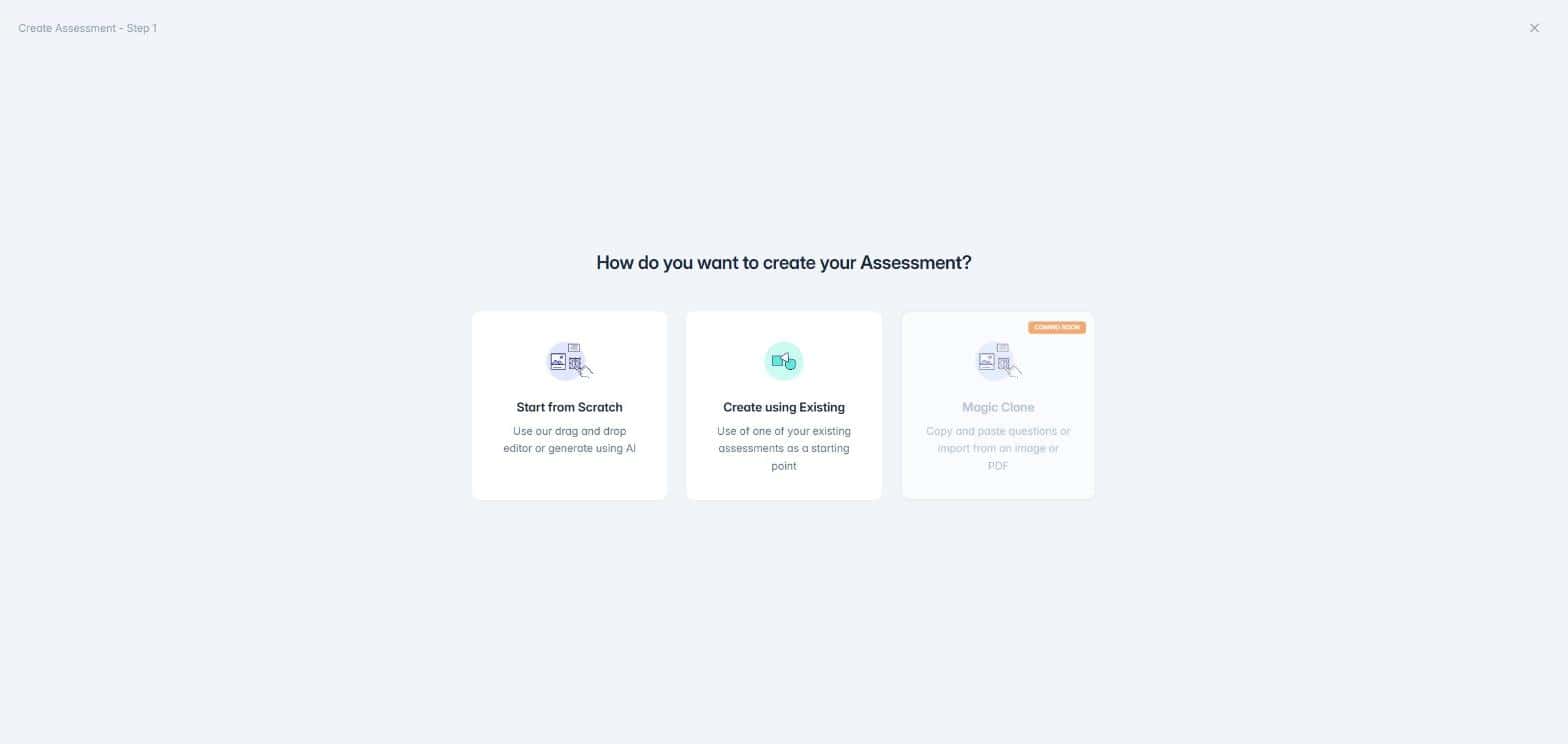
You will see three options:
Start from Scratch: opens an empty Assessment Builder. Build it yourself, or use AI to help generate content. Best for new tasks and custom formats.
Create using Existing: starts from one of your existing assessments. Best for reusing a format or adapting last term's task.
Magic Clone (coming soon): will let you copy questions in, or import them from an image or PDF.
There is no wrong starting point. Pick whichever saves you the most time.
Inside the Assessment Builder
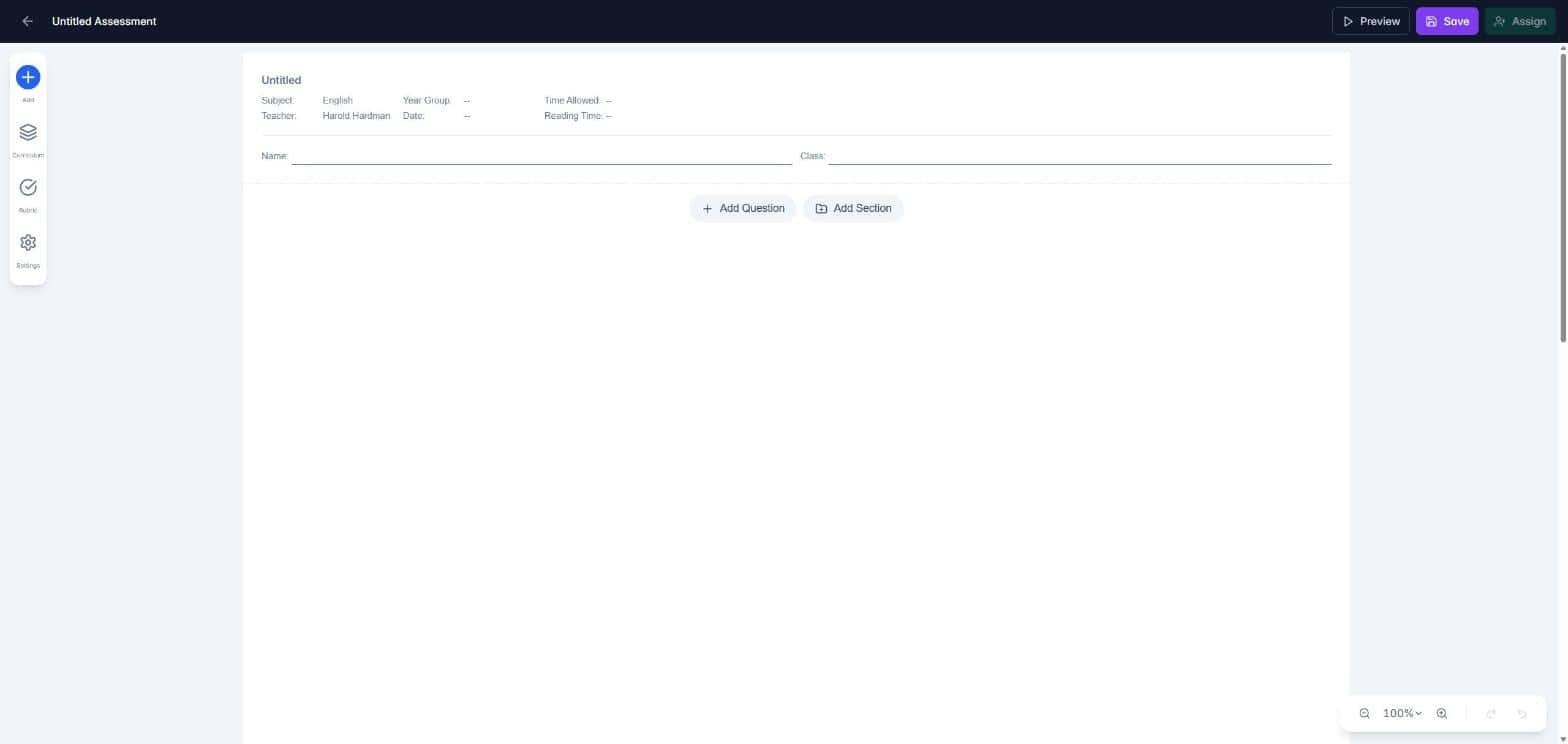
The builder shows your assessment as a page, just as students will see it, with the header (subject, year group, teacher, date and time allowed) at the top.
Add Question and Add Section sit below the last element on the page.
The left-hand menu has Add (all elements and response types), Curriculum, Rubric and Settings.
The top bar has Preview, Save and Assign.
Zoom, undo and redo sit in the bottom-right corner.
Detailed steps for each part are in the guides below. You do not need to finish in one sitting.
Save and assign
Save stores your work in My Assessments. Saving does not make anything visible to students.
Preview shows the assessment as a student will see it.
Assign opens Deliver to Student, where you choose the students, dates and grading settings. Assigning is the step that makes the assessment live.
You stay in control of when students see the task.
Next steps
How do I add questions to an assessment?
How do assessment settings work?
How do I create a marking rubric?
How do I assign an assessment to my class?