

Role: Teacher
Estimated time: 3–4 minutes
Assessment settings control how your assessment looks on screen and on paper, and what the AI knows about the task before it marks anything.
What this guide helps you do
Name and describe your assessment
Give the AI marking context for the whole assessment
Set up the header, page layout and fonts
Add a thumbnail and tags so you can find it later
Find the settings that have moved to other places
Opening Settings
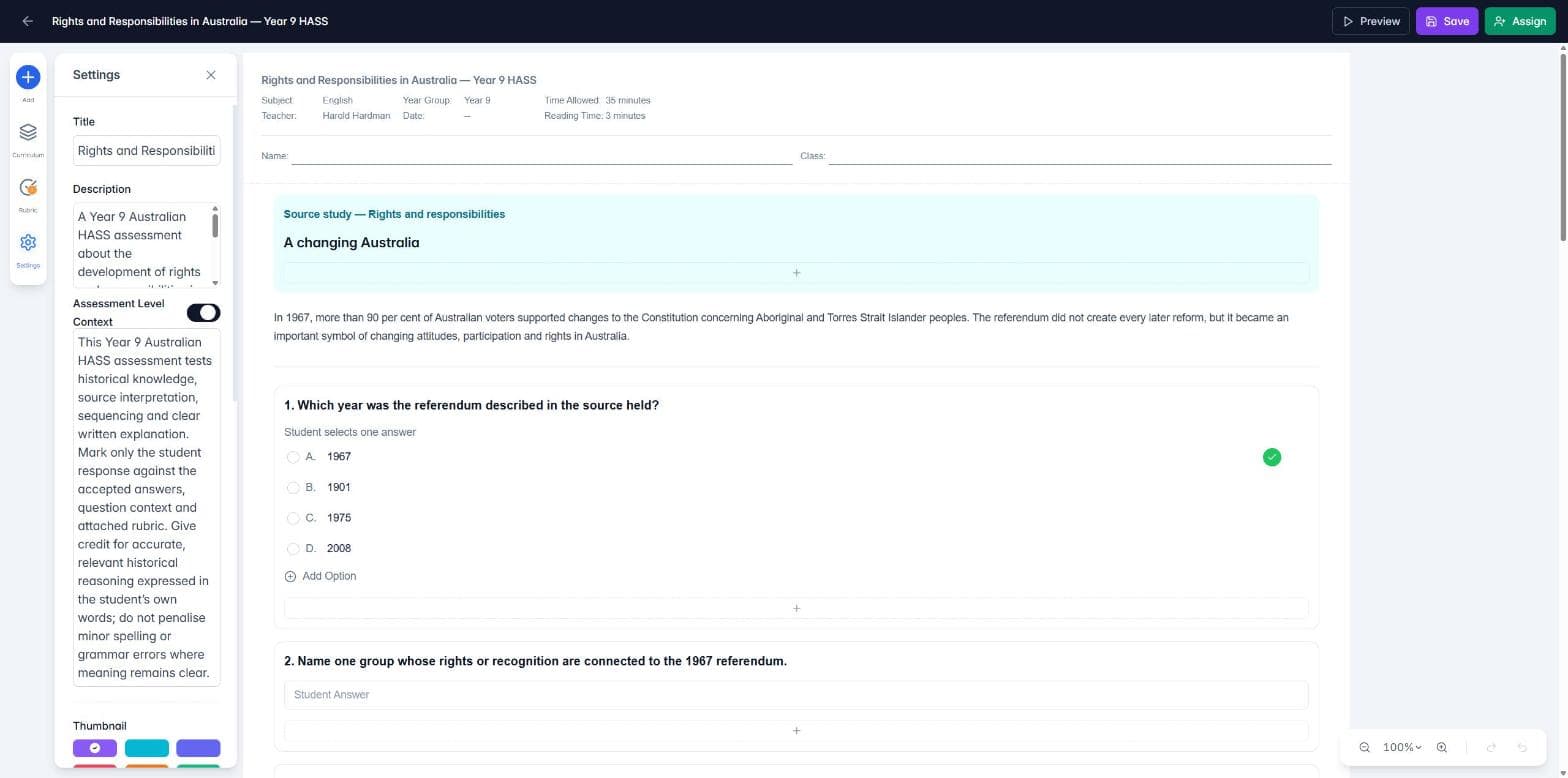
Inside the Assessment Builder, click Settings (the gear icon) at the bottom of the left-hand menu. The Settings panel opens on the left.
Title and description
The Title is the name you and your students see. The Description tells students what the assessment covers, plus any instructions or reminders they need before they start.
Assessment Level Context
Turn on Assessment Level Context to brief the AI about the whole task. Write it the way you would brief a colleague who is marking for you: what the assessment is testing, what to give credit for, and what not to penalise. For example, "Give credit for accurate historical reasoning in the student's own words; do not penalise minor spelling errors where the meaning is clear."
The AI uses this context for every question. You can add more specific guidance to individual questions in each question's properties panel.
Thumbnail
Pick a colour or image for the assessment card. It makes the assessment easier to spot in My Assessments and Assigned when you have a lot of tasks.
Header and question numbers
Enable Header shows the header at the top of the assessment.
Show Question Numbers numbers your questions automatically (1., 2., 3. and so on).
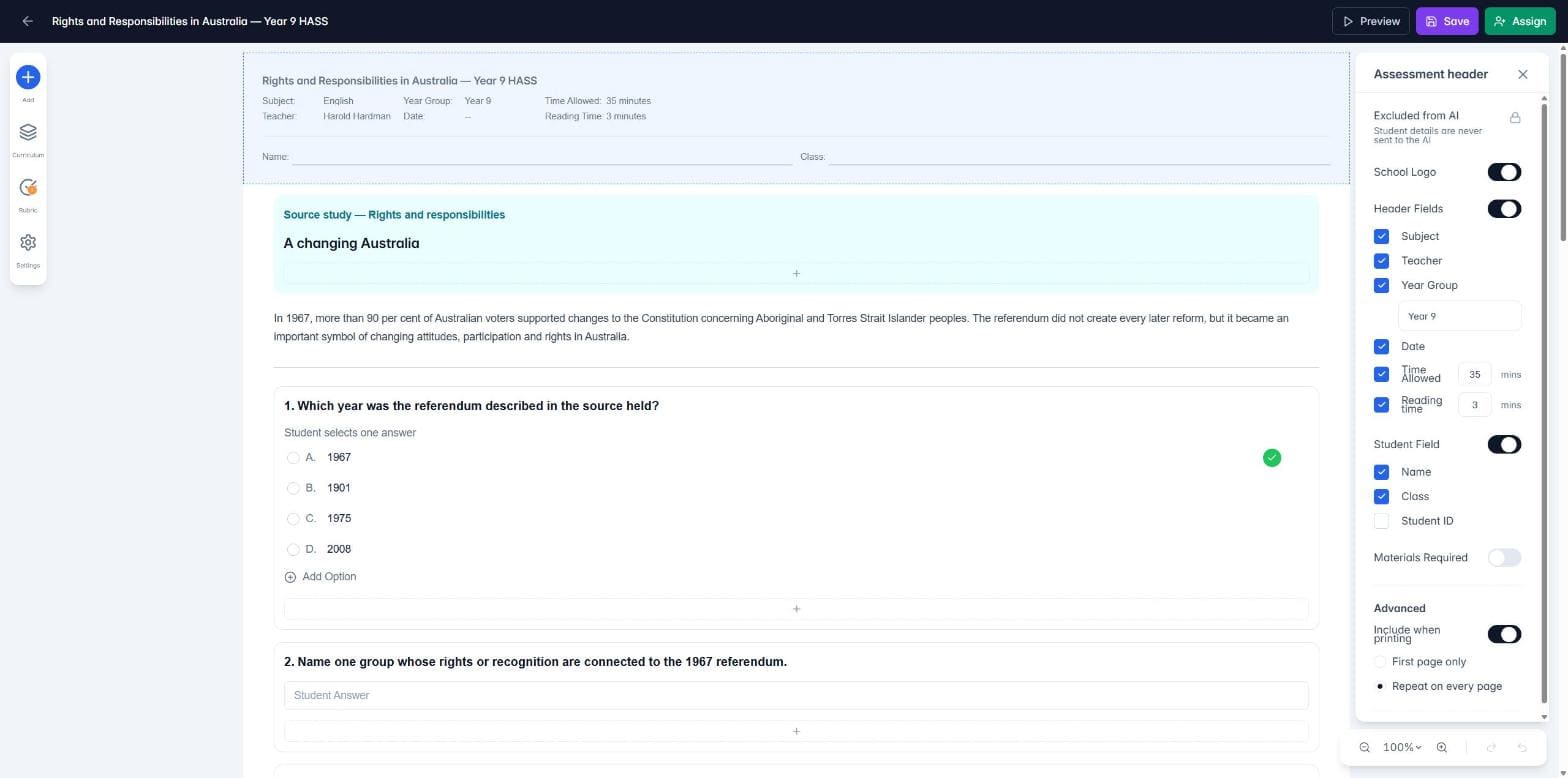
To choose what goes in the header, click the header at the top of the page. The Assessment header panel opens on the right, where you can:
Show or hide the School Logo (your school admin uploads the logo)
Choose the Header Fields: Subject, Teacher, Year Group, Date, Time Allowed and Reading time
Choose the Student Field lines students fill in: Name, Class and Student ID
Add a Materials Required note
Decide whether the header prints on the first page only or repeats on every page
Student details in the header are never sent to the AI.
Page layout and fonts
Page Layout: Blank, Linear Grid or Dotted Grid background
Page Orientation: Portrait or Landscape
Page Size: A4 and other paper sizes
Fonts: separate fonts for headlines and body text
These settings shape both the screen view and the printed paper.
Tags
Add up to 10 tags, such as subject, unit, assessment type or term. Tags make searching and filtering easier as your library grows.
Curriculum
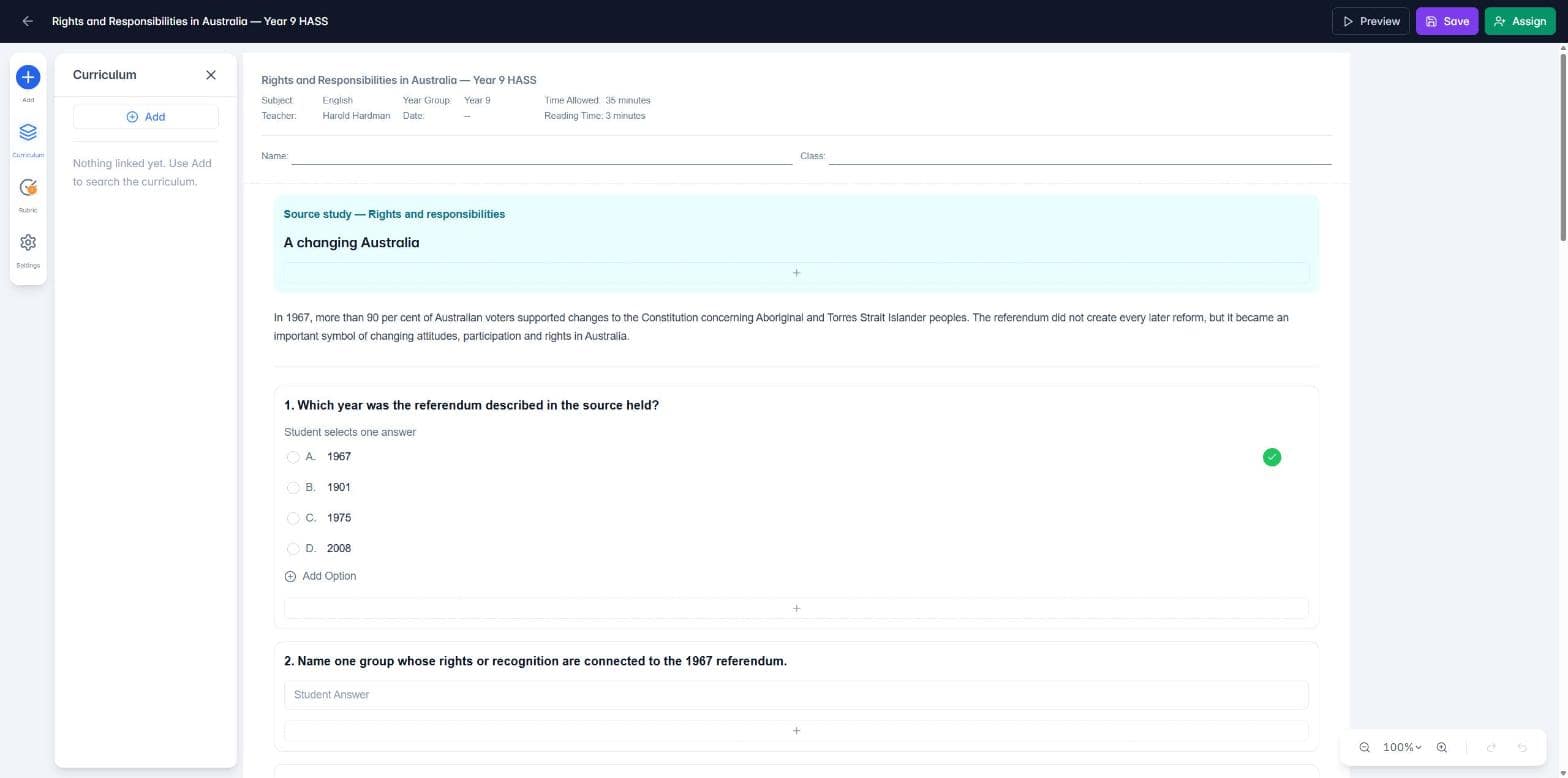
Curriculum has its own panel. Click Curriculum in the left-hand menu, then Add, and search for the outcomes this task covers. The AI uses the linked curriculum when it marks and when it generates rubrics.
Where did marking and weighting go?
If you used TeachersAI before October 2026, you may remember choosing Points, Rubric or Points and Rubric in Settings, and setting the assessment weight there. Those settings now live where you actually use them:
Points are set on each question. See How do I add questions to an assessment?
Rubrics are attached to chosen questions or to the whole assessment from the Rubric panel. See How do I create a marking rubric?
Assessment weighting, Include in final grade, start and due times, the timer, and grading and feedback settings are set when you assign the assessment. See How do I assign an assessment to my class?
Things to remember
Click Save in the top bar to keep your changes.
Settings belong to the master copy in My Assessments. Changing them later does not change copies already assigned to students.
Good assessment context makes AI marking more accurate, and you still check every mark before results are released.
Next: How do I create a marking rubric?