

Role: Teacher
Estimated time: 2–3 minutes
When to use this
Reopen a released assessment when one student needs another attempt. This creates a controlled new submission window for that student; it does not reopen the assessment for the whole class.
Before you start
The student’s assessment must have been finalised and released.
Decide the reason for the new attempt and the new due date you will give the student.
1. Open the released submission
Go to Assessments and open the assigned assessment.
Select the student’s released submission.
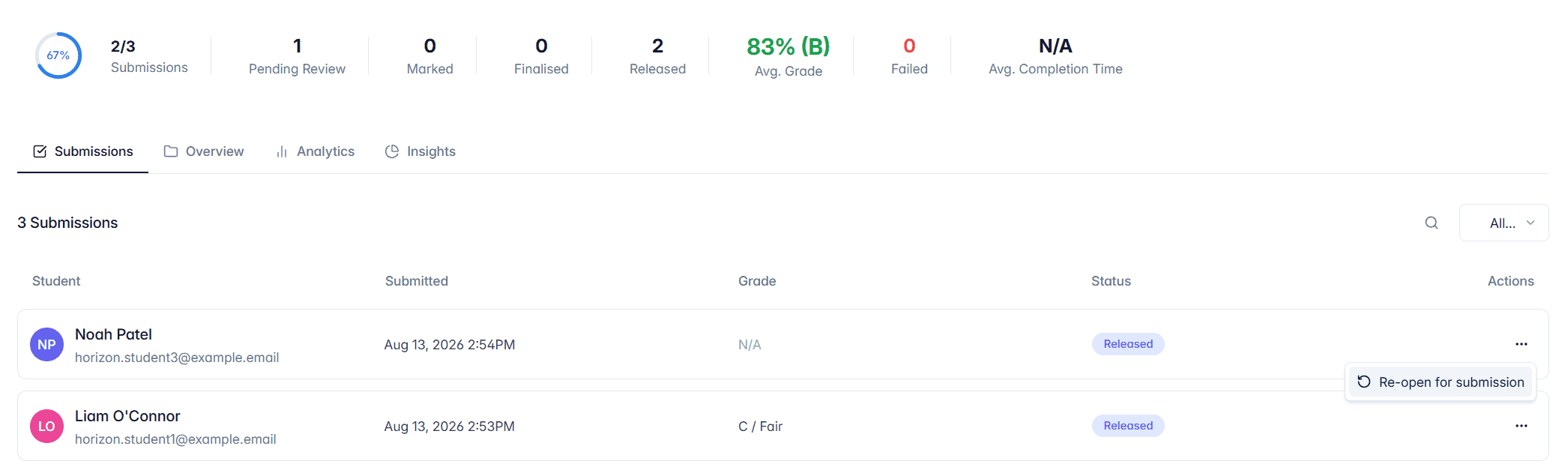
Open the actions menu in the top-right of the submission, then choose Re-open for submission.
2. Explain the new attempt
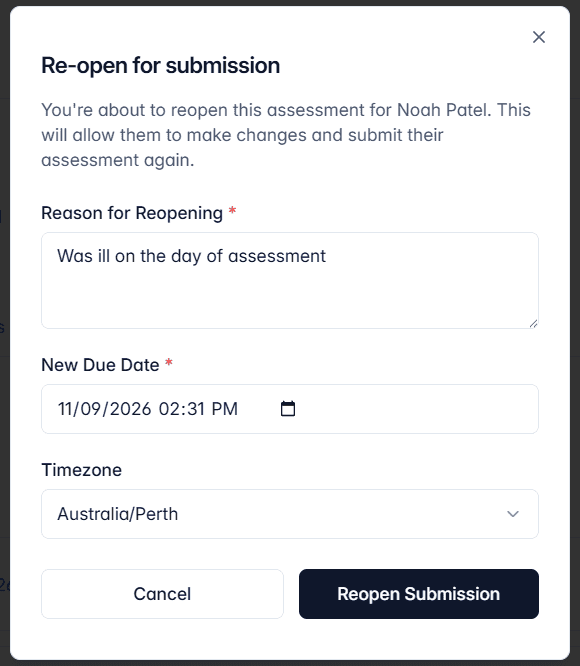
Enter the reason for reopening the work and set a new due date. These details make the change clear to the student and keep the resubmission intentional.
3. Confirm and wait for the new submission
After you confirm, the student can submit again until the new due date. Their new work becomes the current submission for you to review.
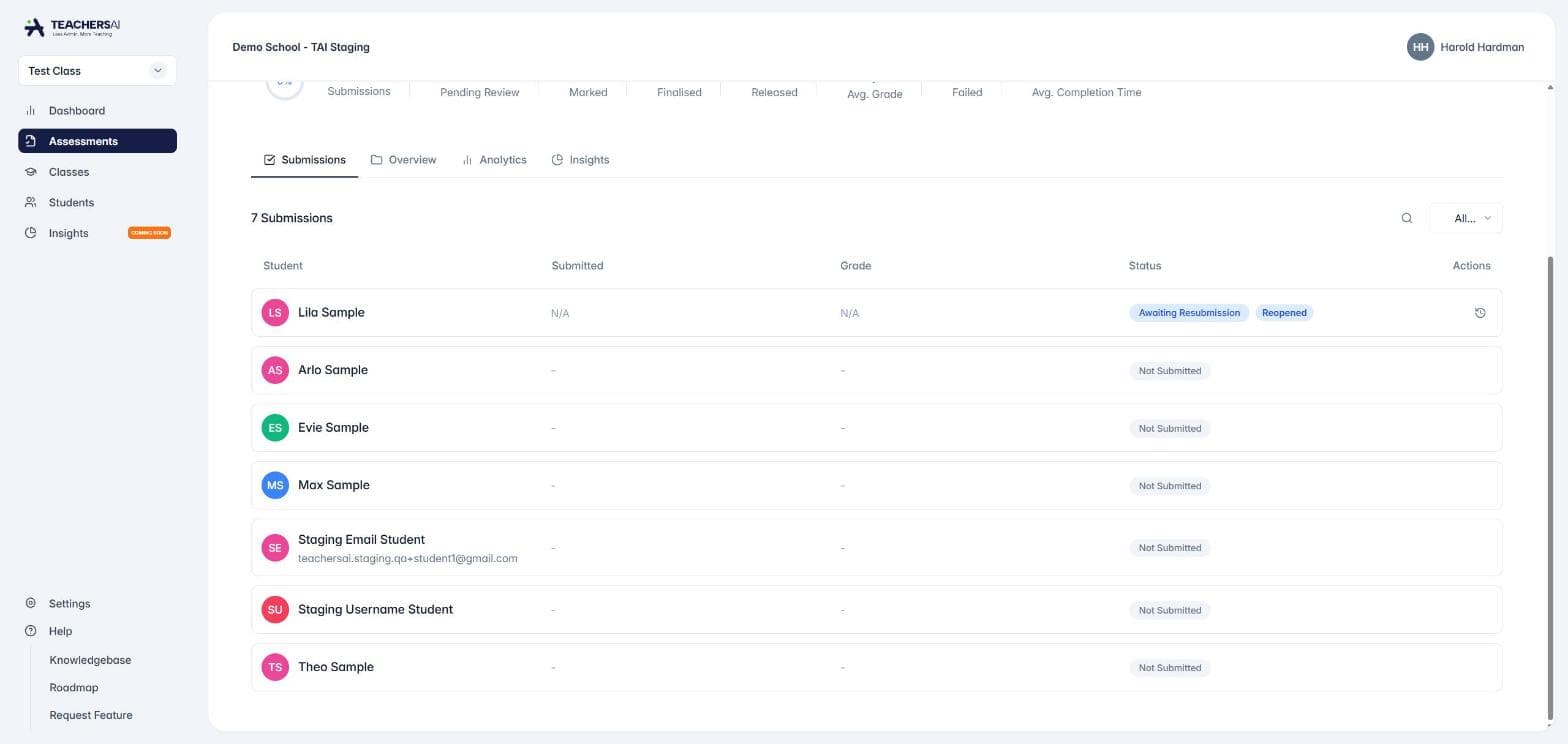
In the assessment's submissions list, the student now shows Awaiting Resubmission with a Reopened tag, so you can see at a glance who has been given another go. The new due date applies to that student only.
On their dashboard, the student sees a Resubmit button, and their earlier answers are kept so they can pick up where they left off.
4. Review the resubmission
When the student resubmits, open the new submission from the assessment.
Mark the work, then use Save Changes while you are reviewing.
Use Finalise Grade to lock the result, then Release Grade when you are ready for the student to see it.
What happens to the original submission?
The earlier attempt is retained in Submission History and marked as superseded. The resubmission is the current attempt, so you can review it without losing the previous record.
Good to know
Reopening is for an individual student’s released submission.
After a resubmission, finalising and releasing are still separate steps.