

Role: Teacher
Estimated time: 4–5 minutes
What this guide helps you do
Questions are what students answer. Everything else on the page is layout and content: the boxes, columns, headings, reading text and pictures that make an assessment easy to follow. This guide shows you how to:
Group content and questions with a section, and split it into columns
Add headlines, text, images and dividers
Control where the page breaks when you print
Choose what appears on screen, on paper, or both
Where to find layout and content elements
In the Assessment Builder, click Add (the blue + at the top of the left-hand menu). The Elements panel opens:
Container: Question and Section
Content/Instructions: Headline, Text and Image
Others (scroll to the bottom): Divider and Page Break
Content elements are for students to read. They are never marked.
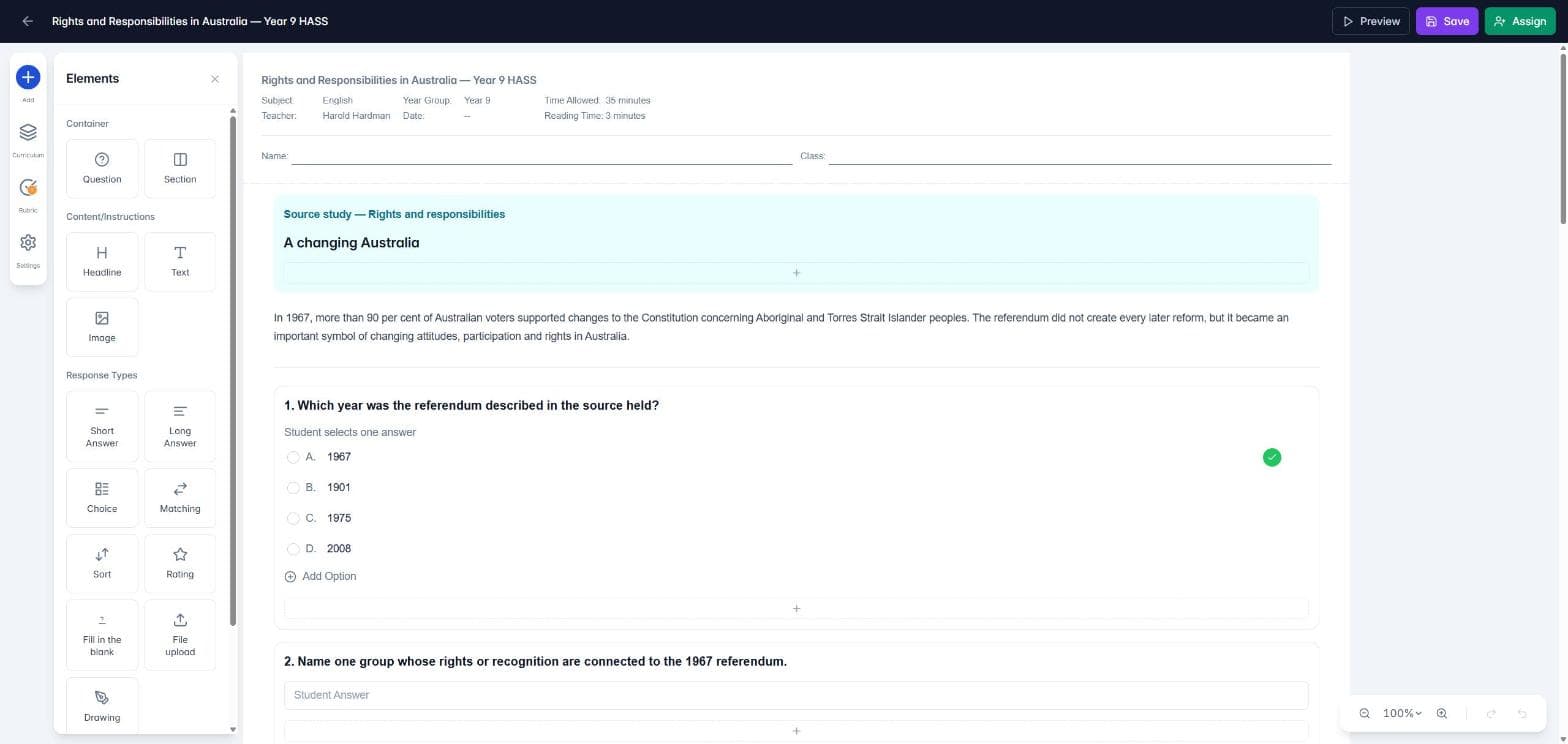
Group content with a section
A section is a box that holds content and questions together. Use one for a source study, a reading passage and its questions, or any part of the paper you want to stand out.
Click Add Section below the last element on the page, or choose Section from the Elements panel.
Click the + bar inside the section to add content or questions to it.
Click the section's outline (not the text inside it) to open its settings on the right.
Split a section into columns
In the section settings, under Columns, choose Full, 2, 3 or 4. Each column gets its own + bar, so you can put a source on the left and its questions on the right. With more than one column, turn on Match column heights to keep the columns level.
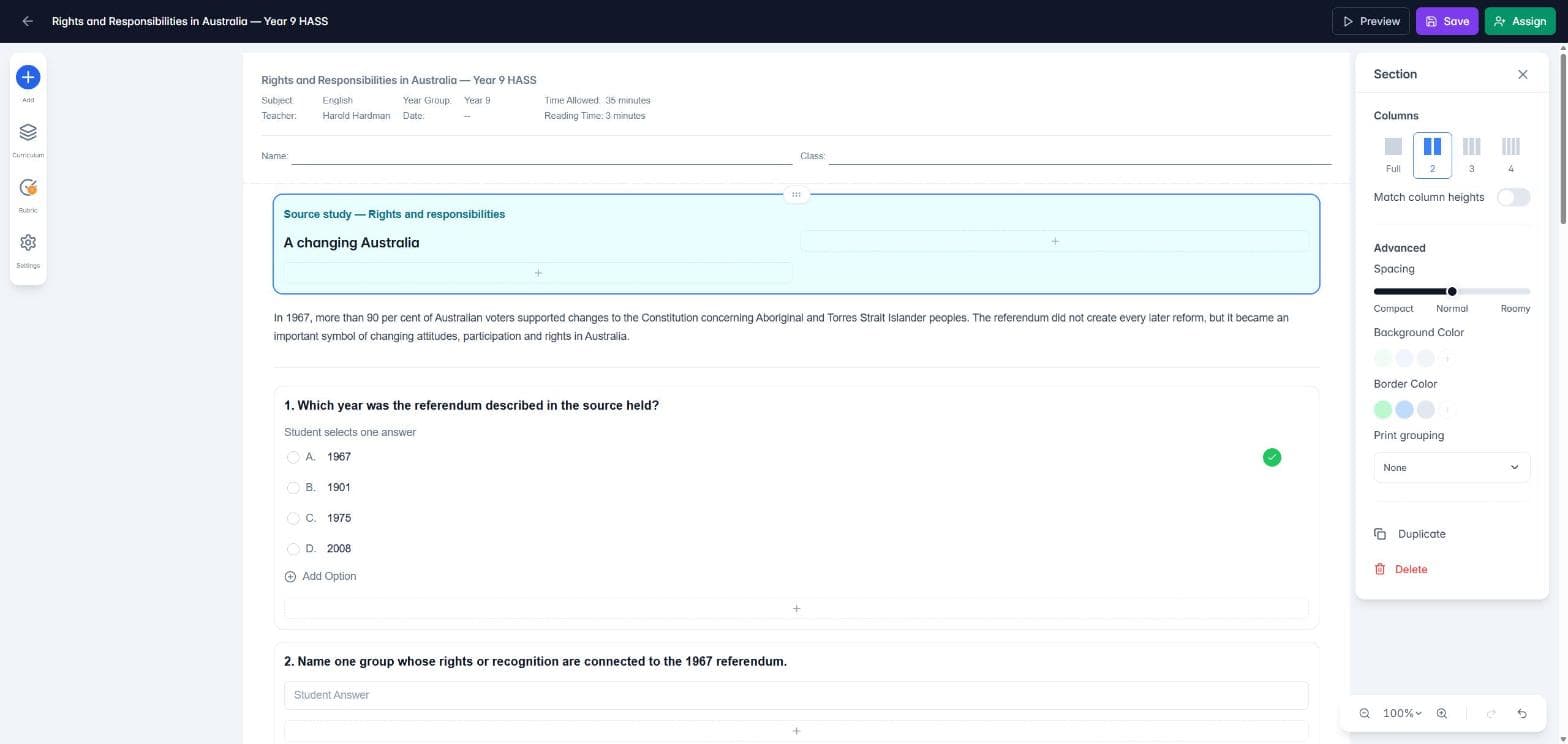
Under Advanced you can also set:
Spacing: from Compact to Roomy
Background Color and Border Color
Print grouping: see the page break section below
Questions have the same spacing and colour options, so you can box a single question too.
Add headlines, text and images
Headline: titles and part headings, such as "Part A: Source study".
Text: instructions, reading passages and source text.
Image: upload a picture, map, diagram or visual source. A small toolbar on the image sets the alignment (left, centre or right), the corners (sharp or round) and a border colour.
Divider: a line that separates one part of the page from the next.
Tip: clicking inside a Headline or Text element starts typing. To open its settings instead, click the small handle at the top of its outline.
Control page breaks when you print
TeachersAI fits your assessment onto A4 pages when you print. To decide where a new page starts:
Add a Page Break. Everything after it starts on a new printed page.
Select a section and set Print grouping to Start on a new page, so the whole section begins on a fresh page.
Page breaks only affect the printed paper. Students working on screen see one continuous page.
Choose Screen only or Print only
Select an element and look under Advanced for Where should this element appear?
Both (the default): on screen and on paper.
Screen only: students see it online, but it is left off the printed paper. Use it for anything that cannot work on paper, such as a File upload.
Print only: on the paper but not on screen, such as "Write your answer in the space below".
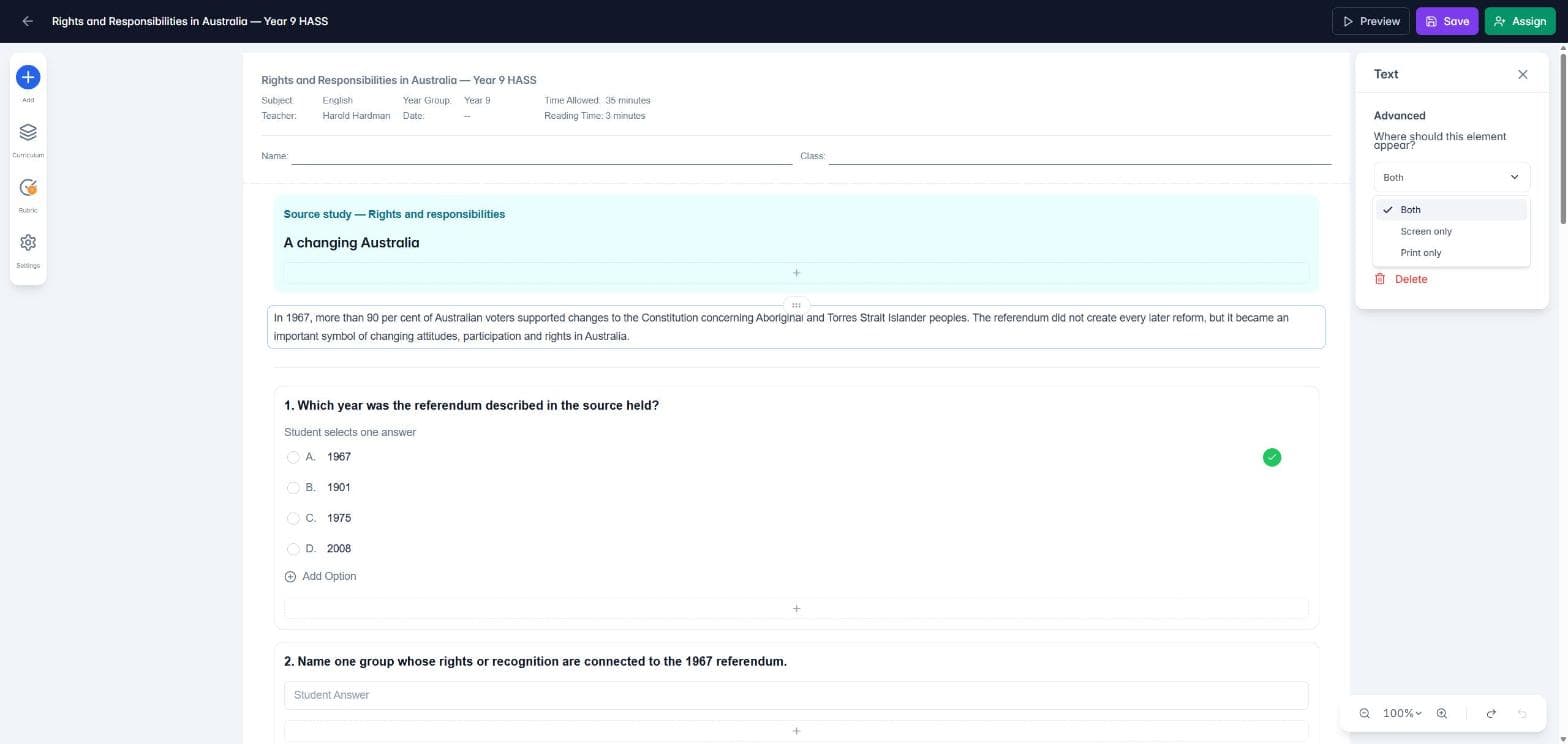
If a marked question would be left out of the printed paper or the online version, TeachersAI warns you before you print or assign.
Good to know
Drag any element by the handle at the top of its outline to move it, including into or out of a section.
Use undo and redo (bottom right) if something lands in the wrong place.
Use Preview to check the student view before you assign.
Click Save often.
Next: How do I add questions to an assessment? and How do assessment settings work?