Role: Teacher
Estimated time: 4–5 minutes
When students submit, TeachersAI marks the questions with set answers straight away and gives you everything you need to check, adjust and confirm the rest. Nothing reaches students until you release it.
What this guide helps you do
Find the submissions that are ready to mark
Know what is marked automatically, what the AI suggests, and what you mark yourself
Adjust marks and feedback, and use AI Grade and Refine
Finalise and release results to students
Who marks what
Question type | How it is marked |
|---|---|
Choice, Matching, Sort, Fill in the blank | Automatically, against the answer key you set in the builder |
Short Answer, Long Answer | The AI suggests a mark and feedback using your question context. You check and confirm. |
Rubric-marked questions | The AI suggests a level for each criterion. You confirm or change it. |
Drawing, File upload | By you. Look at the student's work and enter the points. |
Rating | Not scored by default |
Step 1: Open a submission
Go to Assessments and open the Assigned tab.
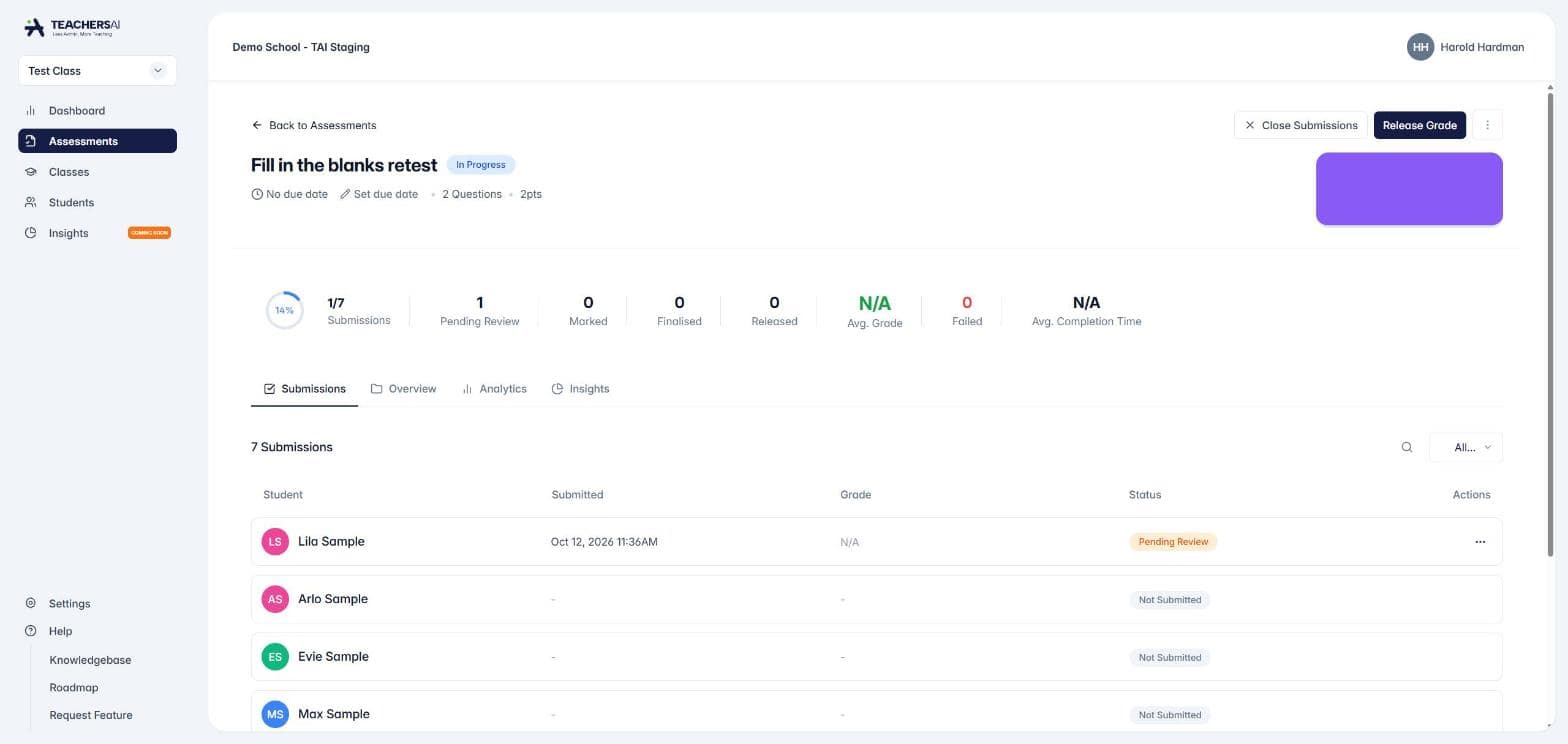
Open the assessment. The Submissions tab lists every student with the date they submitted, their grade and their status. The counts across the top show how many are Pending Review, Marked, Finalised and Released.
Click a student marked Pending Review.
Students marked Not Submitted have nothing to mark yet.
Step 2: Find your way around the grading page
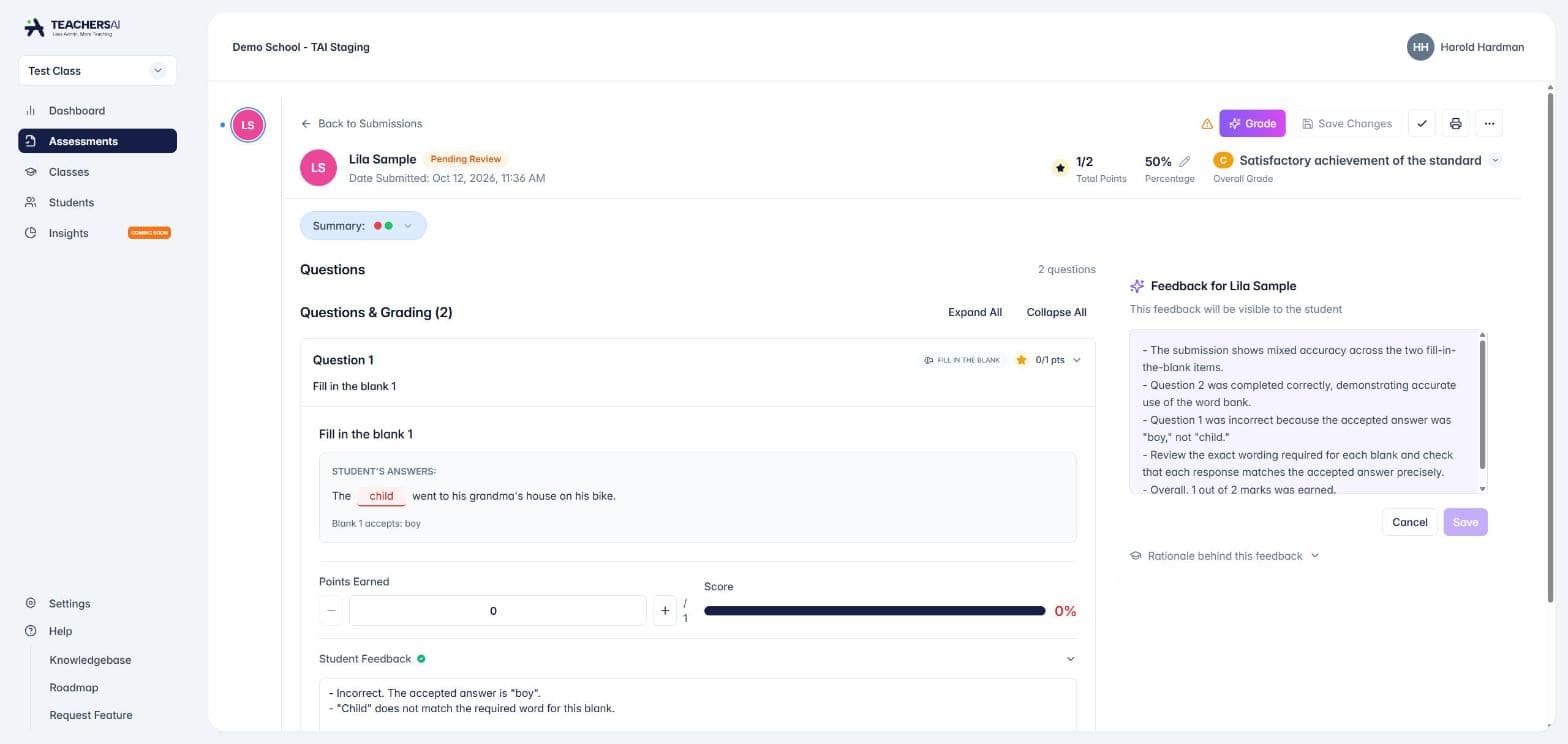
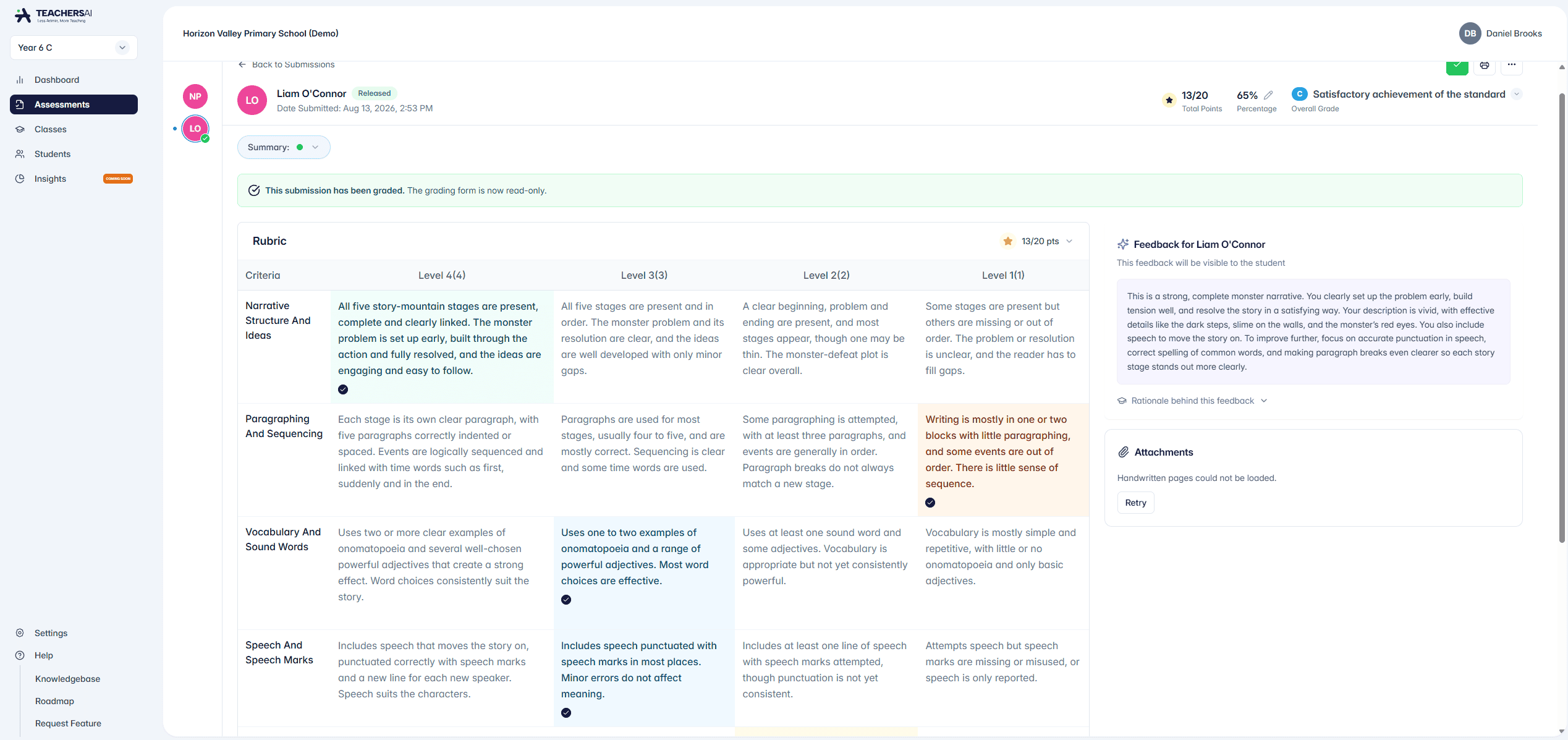
Top of the page: the student, their status, Total Points, Percentage and Overall Grade.
Summary: a quick grade for every question, so you can see at a glance where the student went well or struggled.
Questions & Grading: each question with its type and points. Click a question to open it, or use Expand All.
Feedback panel (right): the overall feedback the student will see.
Toolbar (top right): Grade (AI marking), Save Changes, the tick to finalise the grade, print, and the ⋯ menu. The warning icon beside Grade explains AI use, privacy and safety.
Step 3: Check each question
Open a question to see the student's answer. Questions with a set answer also show the accepted answer, so you can see exactly why a mark was given.
Points Earned: type a new mark, or use the + and – buttons. The score bar updates as you go.
Student Feedback: edit the comment for that question. Students see it when you release results.
Drawing and File upload: open the student's work and enter the points yourself.
Rubric questions: choose a level for each criterion and TeachersAI totals the score. See How do I create a marking rubric?
Step 4: Use AI Grade
Click Grade to have the AI mark the submission. It suggests marks and writes feedback for the open-ended and rubric questions, following the Grading and Feedback settings chosen when the assessment was assigned: strictness, feedback format, length, tone and pitch. Questions with a set answer are always marked against your answer key.
If you've already made changes, click Save Changes first, then check your marks and comments again once the AI has finished.
Step 5: Refine the overall feedback
Click Refine under the overall feedback to edit it yourself. Reword it, cut it down or add your own comments, then click Save (or Cancel to leave it as it was). Rationale behind this feedback shows what the feedback was based on.
Step 6: Save, finalise and release
Save Changes keeps your work. The submission stays Pending Review, so you can come back to it.
Finalise grade (the tick at the top right) records the grade and makes the grading page read-only. Students still can't see it. Click the tick again if you need to make more changes; your marks and feedback are kept.
Release Grade (top right of the assessment's Submissions page) makes finalised results, overall feedback and question feedback visible to students.
Finalising and releasing are separate on purpose. Mark the whole class, check the results side by side, then release when you're happy.
Giving a student another go
For a released submission, open the ⋯ menu and choose Re-open for submission. See How do I reopen an assessment for resubmission?
You stay in control
AI marks and feedback are suggestions. Check every one before you finalise.
Every mark and comment can be changed until you finalise, and again after you unfinalise.
Students only see results you have finalised and released.