

Role: Teacher
Estimated time: 3–4 minutes
What this guide helps you do
Some tasks work best on paper. This guide shows you how to print an assigned assessment for your whole class or chosen students, what each student's paper looks like, and how to make sure nothing important is missing from the printed copy.
Before you print
Check the layout. In the builder, use Page Break and Print grouping to control where pages start, and check any elements set to Screen only or Print only. See How do I lay out an assessment with sections and content elements?
Give students room to write. Set the writing space on each Long Answer (see below).
Assign it first. Printing is done from the assessment's details page once it has been assigned to your class.
Print for your class or chosen students
Go to Assessments, open the Assigned tab and open the assessment.
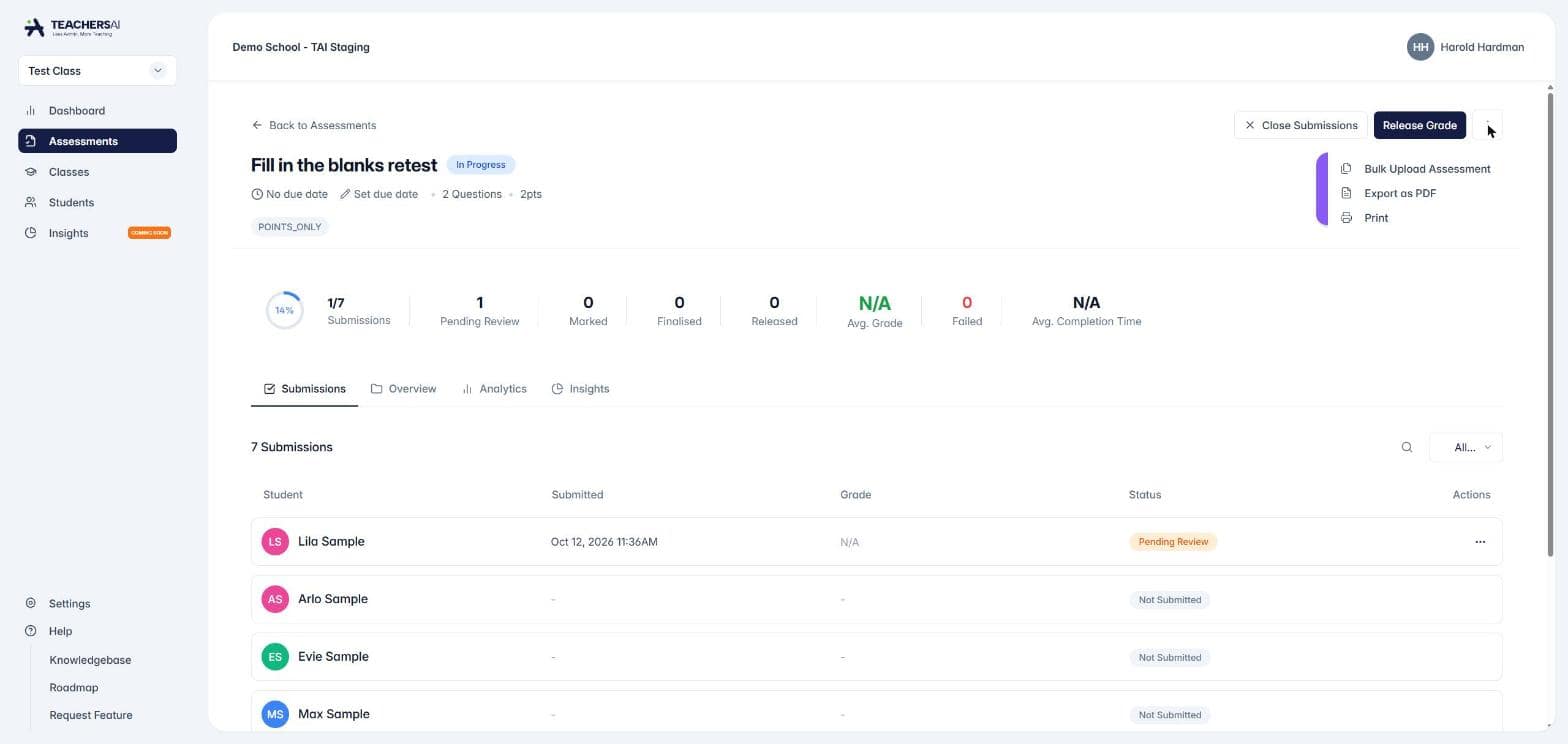
Click the three-dot menu next to Release Grade and choose Print.
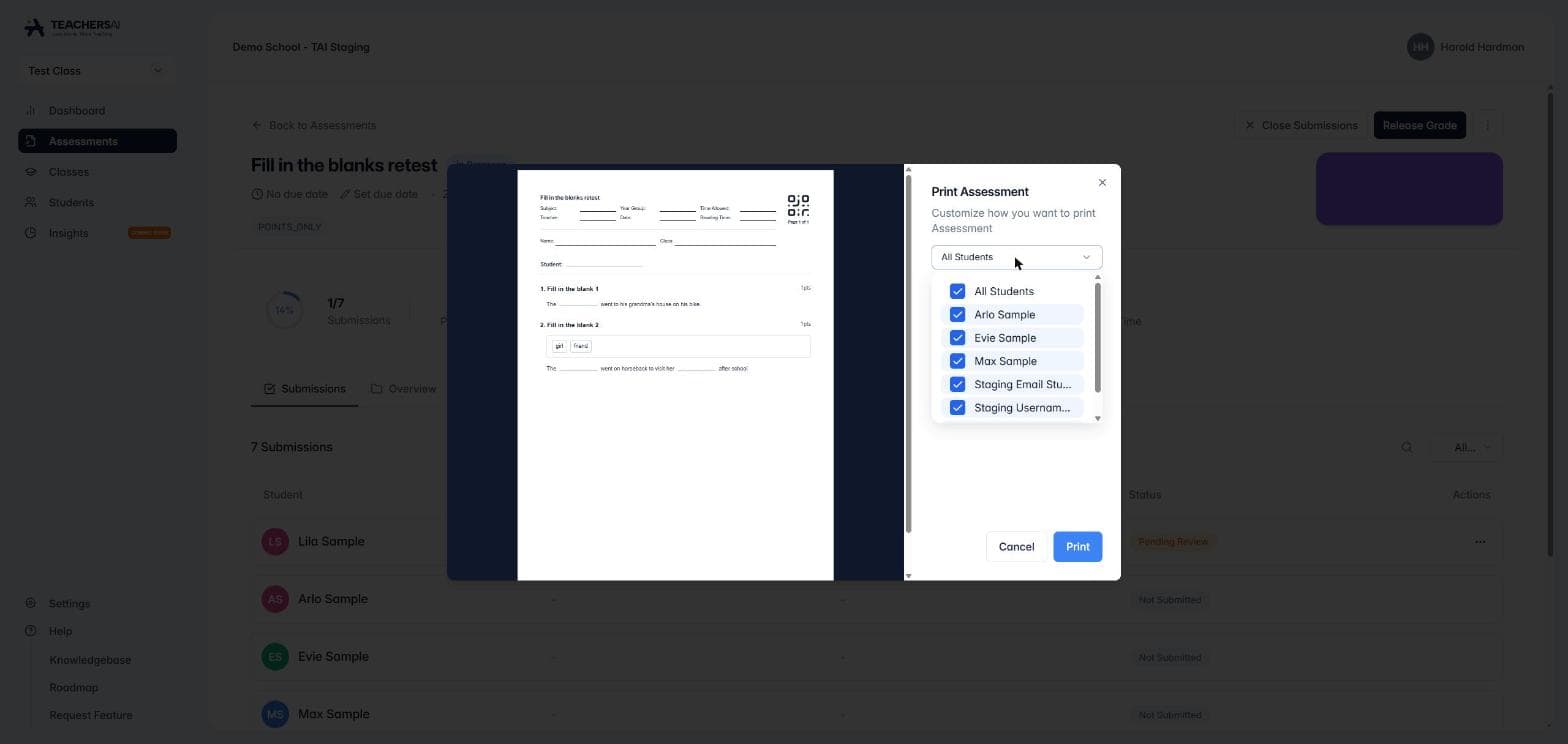
The Print Assessment window opens with a preview of the paper on the left.
Choose who to print for. All Students is selected by default. Open the list and untick anyone you don't need a copy for.
Click Print.
What's on each student's paper
A4 pages. TeachersAI fits the assessment onto A4 automatically.
The assessment header, filled in from your assessment settings, with your school logo if your school has one.
A personal copy for each student you selected. Every page carries a QR code and its page number (for example, Page 1 of 2). The QR code ties that page to that student, which helps when you upload the completed papers with Bulk Upload Assessment from the same menu.
Give students room to write on long answers
A printed Long Answer needs enough lines for the task. If you ask for two or three paragraphs, a few lines won't do.
In the builder, select the Long Answer response to open its settings.
Set the Writing space in lines or pages. The default is 12 lines.
Save the assessment.
The printed paper shows that many lines, and continues onto the next page when the space runs past the end of a page. Students working on screen still type their answer as usual.
Screen only, Print only and warnings
Elements set to Screen only are left off the printed paper.
Elements set to Print only appear on the paper but not on screen.
If a marked question would be left out of the printed paper, TeachersAI warns you before you print, so you can change the setting first. You get the same check when you assign, for anything left off the online version.
Good to know
Print one copy first and check it before printing for the whole class.
Page breaks only affect the paper. Students on screen see one continuous page.
Questions that only work on screen, such as a File upload, are best set to Screen only.
Next: How do I lay out an assessment with sections and content elements?