

Role: Teacher
Estimated time: 5–6 minutes
Rubrics let you mark extended responses, projects and analytical tasks against clear criteria, and they give the AI the same criteria when it suggests marks and feedback.
What this guide helps you do
Create a rubric and choose which questions it marks
Generate a rubric with AI, from the curriculum or from your own description
Edit criteria, levels, points and weights
Decide when students can see the rubric
Before you start
Build the questions the rubric will mark first, then Save the assessment. A rubric can only be attached to a saved question.
Link your curriculum if you want the AI to build the rubric from it. Click Curriculum in the left-hand menu, then Add, and search for the outcomes this task covers. The AI also uses this curriculum when it marks.
Step 1: Create a rubric
There are two ways in:
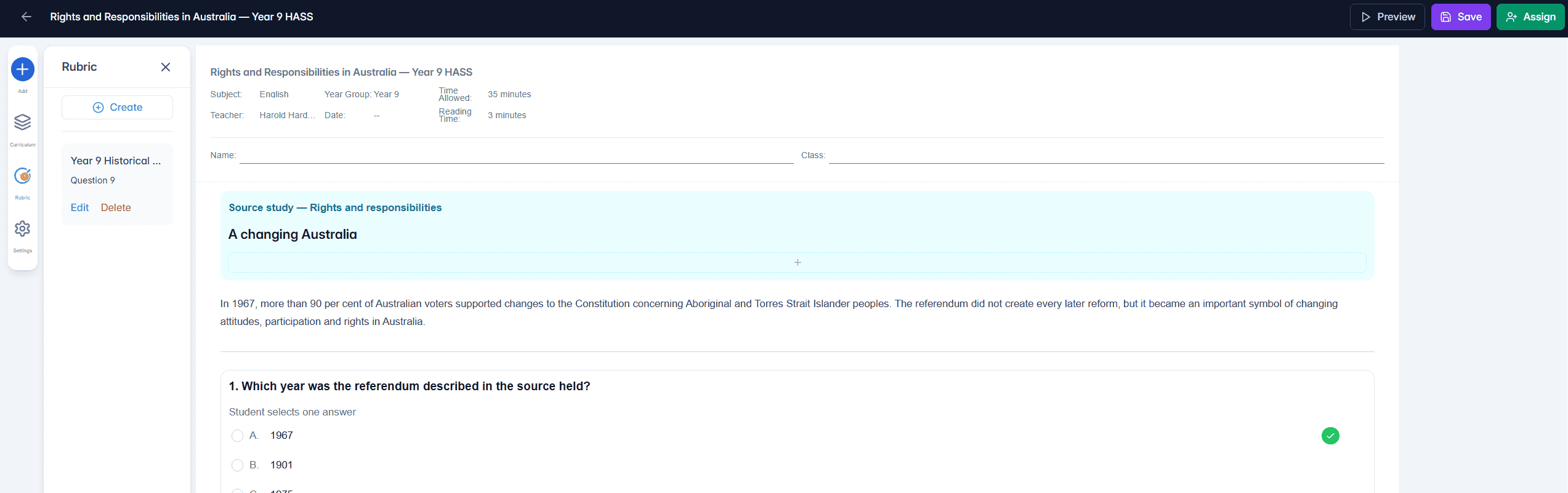
From the Rubric panel: click Rubric in the left-hand menu, then Create. Any rubrics already on the assessment are listed here with the questions they mark, plus Edit and Delete.
From a question: select the question and turn on Switch to Rubric under Scoring Method in the properties panel.
Step 2: Build the rubric
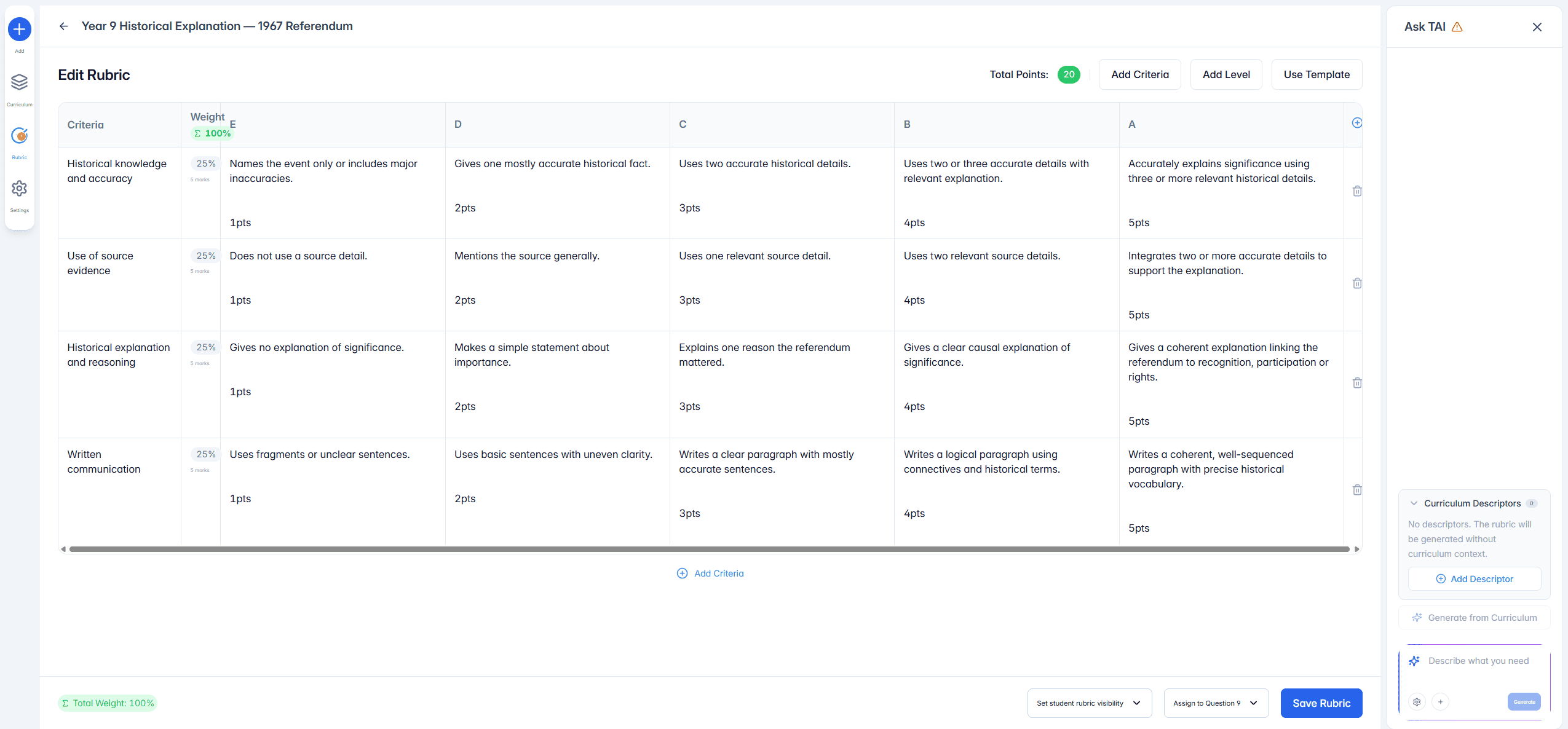
The rubric editor is a grid. Each row is a criterion (what you are assessing) and each column is a level (for example E to A). Each cell holds the performance description for that level and the points it is worth.
Add Criteria and Add Level add rows and columns. Use the bin icon at the end of a row to remove a criterion.
Click any cell to edit the description or the points.
Weight sets how much each criterion counts. The weights must add up to 100%; the running total shows at the top of the Weight column and at the bottom of the editor.
Total Points (top right) shows what the rubric is worth. A question marked by a rubric is worth what its rubric is worth.
Use Template starts you from a ready-made structure.
Step 3: Let the AI draft it (optional)
The Ask TAI panel on the right can write the rubric for you:
Generate from Curriculum builds criteria and level descriptions from the curriculum descriptors listed above it. Use Add Descriptor to add more. With no descriptors, the rubric is generated without curriculum context.
Describe what you need lets you ask in your own words, such as "A Year 6 persuasive writing rubric with four criteria". You can also paste in a rubric you already use and ask the AI to tidy or restructure it.
Whatever the AI writes goes straight into the grid, and you can change any part of it. You stay in control.
Step 4: Choose which questions it marks
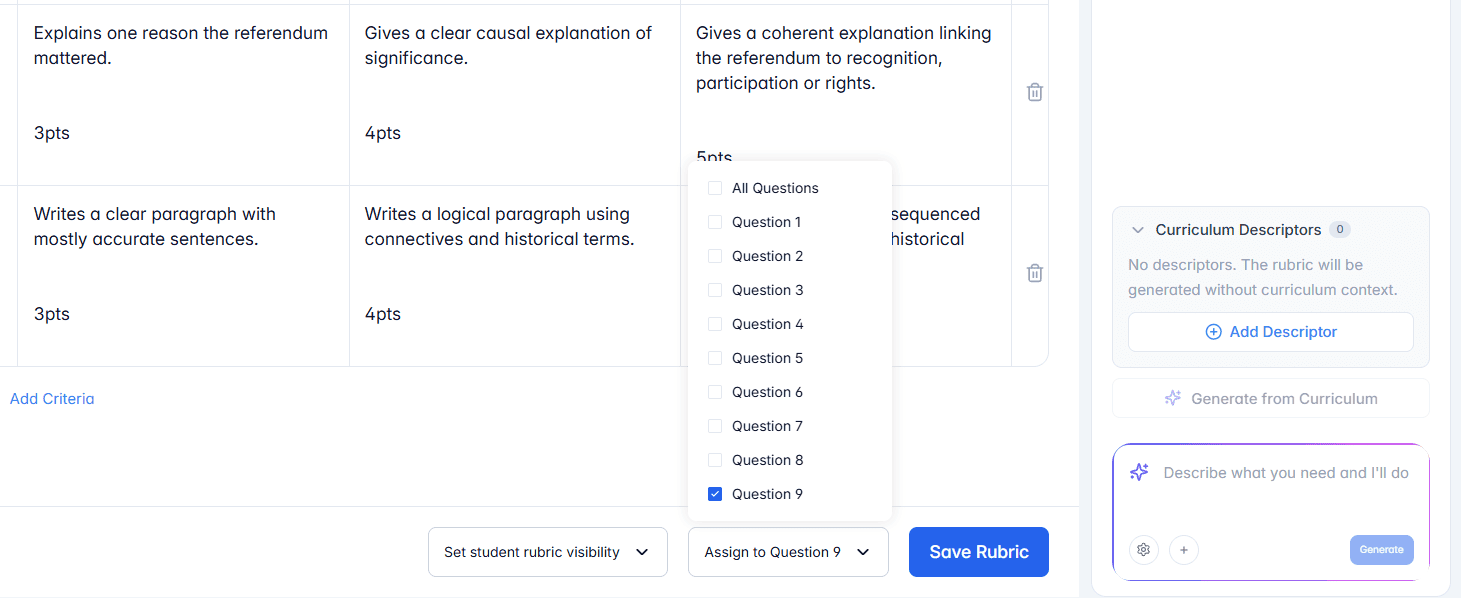
Use the Assign to menu at the bottom of the editor:
Tick one or more questions to use the rubric as a question rubric. It appears with those questions only.
Tick All Questions to use it as a whole-assessment rubric.
An assessment uses either question rubrics or one whole-assessment rubric, not both.
Step 5: Set what students see
Open Set student rubric visibility at the bottom of the editor:
Visible before students begin: students can read the rubric during reading time.
Visible during the assessment: students can check the rubric while they work.
Open when I mark: the rubric opens for you on the grading page.
These settings apply to every question the rubric marks.
Step 6: Save
Click Save Rubric, then Save the assessment. You can come back through the Rubric panel and edit the rubric at any time.
How rubric marking works
On the grading page, each criterion shows the selected level. You choose or change the level for each criterion, and TeachersAI totals the score. If you use AI marking, the AI suggests a level for each criterion against your descriptions, and you can ask it to redo the rubric marking. Nothing reaches the student until you finalise and release the result.
Things to remember
Rubrics work best for extended writing, projects and tasks with more than one right answer.
Criterion weights must add up to 100%.
A question rubric shows only with its own question; a whole-assessment rubric covers the whole task.
Clear, specific level descriptions give you, your students and the AI the same picture of quality.
Next: How do I assign an assessment to my class?