

Role: Teacher
Estimated time: 5–6 minutes
What this guide helps you do
This guide shows you how to build the body of an assessment in the Assessment Builder:
Add questions and choose how students will respond
Group questions into sections and add reading content
Set correct answers and marks
Use the properties panel to adjust, duplicate or delete anything on the page
How the builder works
The builder works like setting out a worksheet. Everything on the page is an element, and you build the assessment by placing elements in the order students will meet them.
Question: holds the question text and one or more responses. Points, Required and the AI context are set on the question.
Response: the part the student actually answers, such as a Choice, Short Answer or Drawing. A question can hold more than one response.
Section: groups questions and content together, and can be split into 2, 3 or 4 columns.
Content: Headline, Text, Image, Divider and Page Break. Students read these; they are not marked.
The header at the top of the page (subject, year group, teacher, date, time allowed, reading time, and the name and class lines) is filled in from your assessment settings.
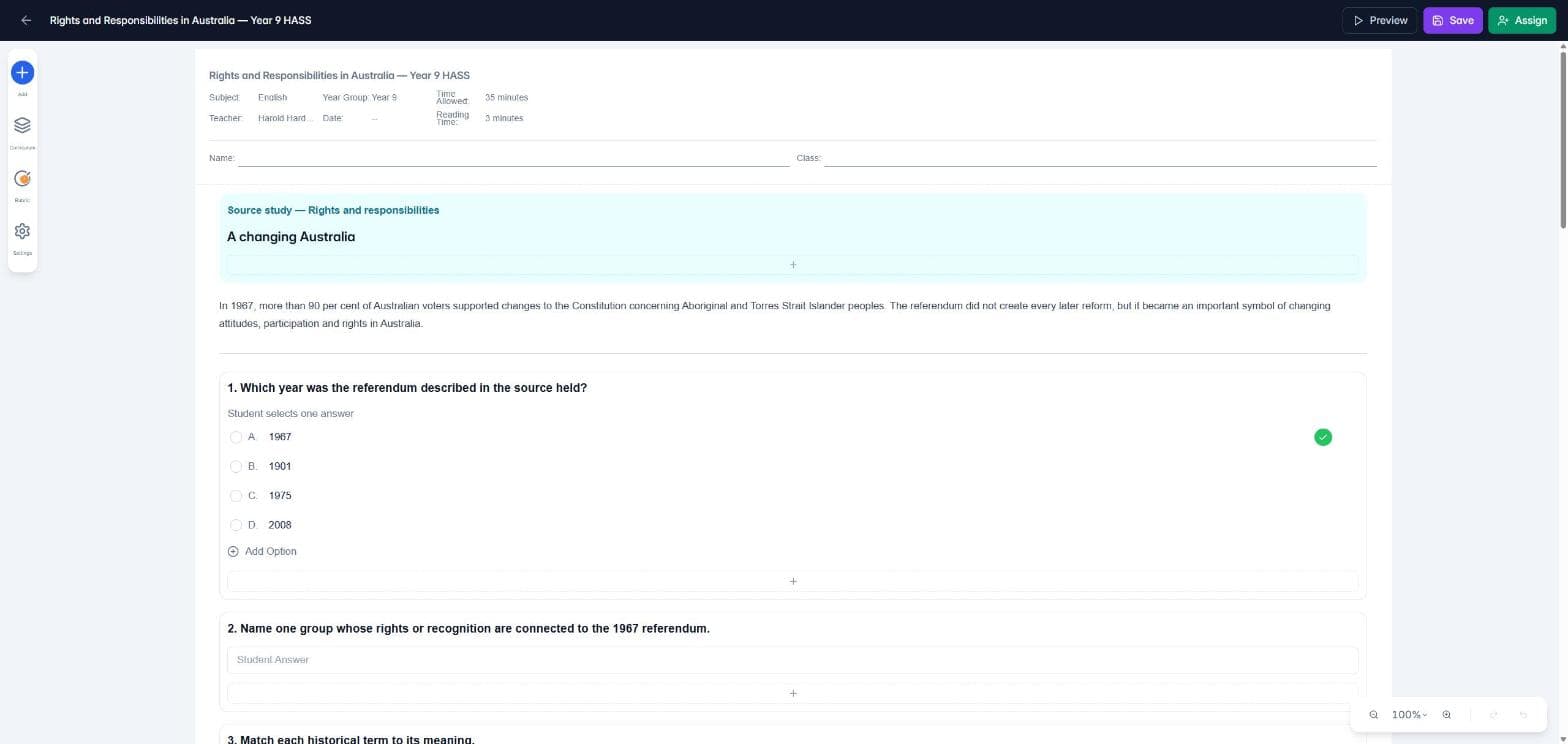
Add a question
Click Add Question below the last element on the page. A new, empty question appears.
Click Question Title and type your question.
Click the + bar inside the question. The Elements panel opens on the left and shows which question you are adding to.
Choose a response type. It appears inside the question, ready to fill in.
Need a two-part question, such as a choice followed by "explain your answer"? Click the + bar again to add a second response to the same question.
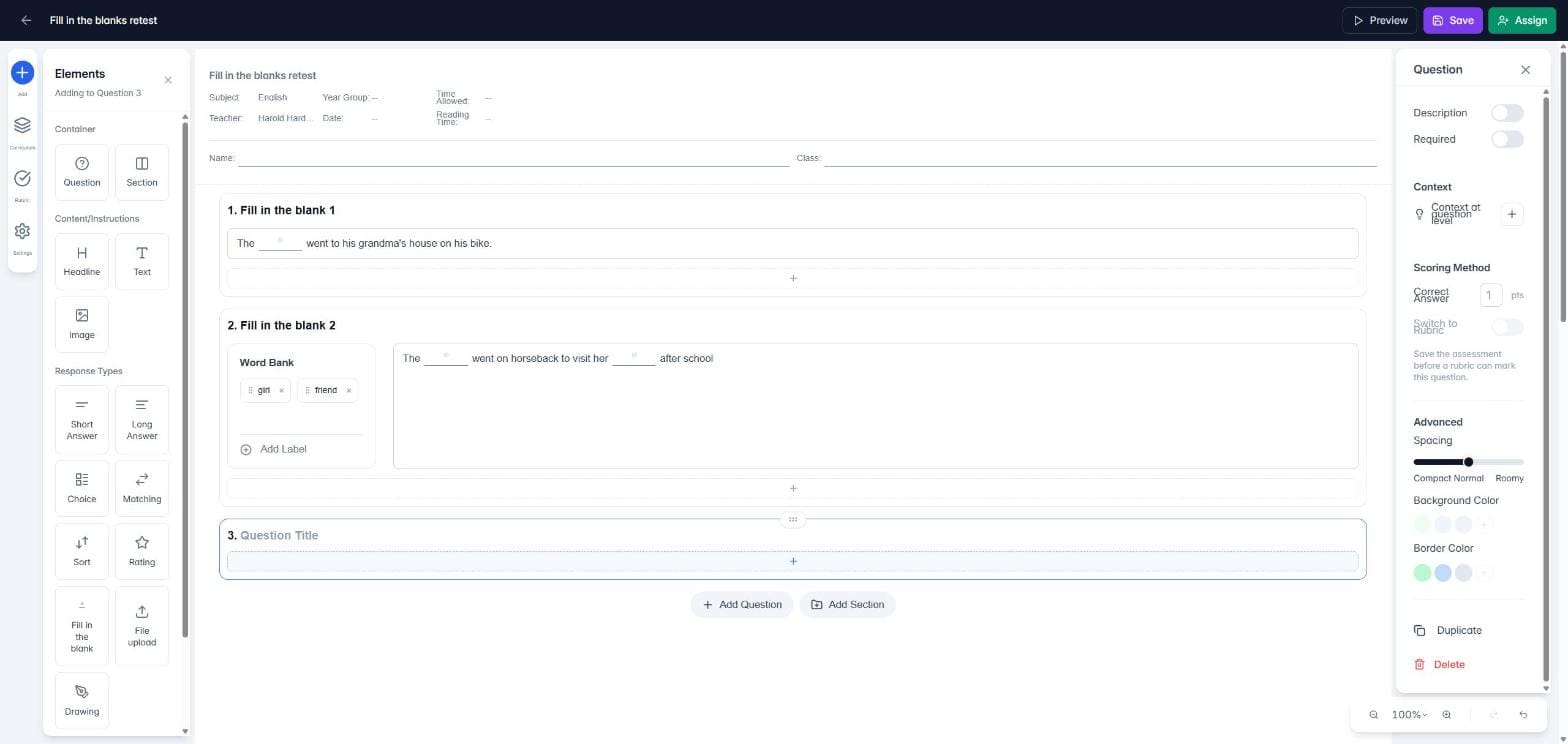
Add sections and reading content
Click Add Section to group related material, such as a source study or a reading passage with its questions. Select the section to set its columns (Full, 2, 3 or 4), spacing, and background and border colours.
For reading material, open Add (the blue + at the top of the left-hand menu) and choose Headline, Text or Image. Divider and Page Break, under Others, help you control how the page looks and where it breaks when printed.
Choose a response type
There are nine response types. Pick the one that matches what you want students to show you.
Response type | Best for | How it is marked |
|---|---|---|
Short Answer | A word, a number, or one or two sentences | AI, using your question context |
Long Answer | Paragraphs, extended responses and essays. You can set a word or character limit. | AI, or a rubric |
Choice | Single choice, multiple choice, true or false, or picture cards | Automatically, against the answer you tick |
Matching | Pairing terms with meanings, or causes with effects | Automatically |
Sort | Putting events or steps in order. Students see the items shuffled. | Automatically |
Fill in the blank | Cloze passages, typed in or dragged from a word bank | Automatically, per blank or one mark for the whole response |
Rating | Confidence checks and self-reflection on a star scale | Not scored by default |
File upload | Photos, documents or video of work done off screen. You choose the file types, number of files and size limit. | By you. Can also be set as supporting evidence only. |
Drawing | Diagrams, timelines and sketches on a drawing board with a blank, lined grid or dotted grid background | By you |
Making a blank in Fill in the blank
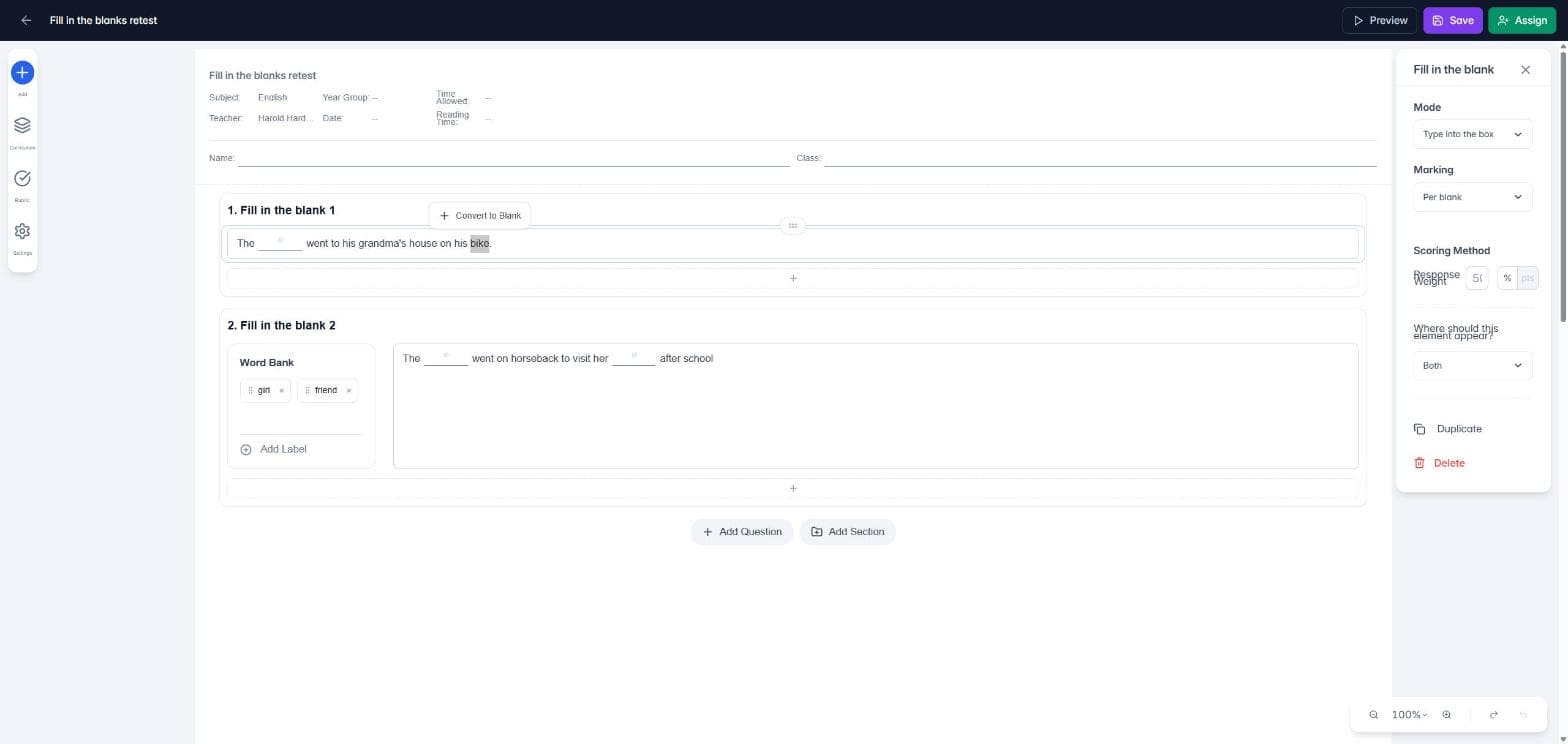
Type the full sentence first. Then select the word you want students to supply and click Convert to Blank. The word becomes the accepted answer, and you can click the blank to add other accepted answers.
In the properties panel, choose the Mode (students type into the box, or drag words from a word bank) and the Marking (per blank, or one mark for the whole response). Always make blanks with Convert to Blank; the builder will not save a Fill in the blank response that has no blanks.
Set correct answers and marks
Correct answers are set on the page. Tick the correct option in a Choice, pair items in Matching, enter Sort items in the correct order, and convert words to blanks in Fill in the blank.
Points are set on the question. Select the question and enter the points under Scoring Method. To mark it with a rubric instead, turn on Switch to Rubric. Save the assessment first, as a rubric can only be attached to a saved question. See How do I create a marking rubric?
Response weight applies when a question has more than one response. Each response's weight is its share of the question's marks, and the weights must add up to 100%.
The properties panel
Click any element to open its properties on the right. What you see depends on what you selected:
Question: Description, Required, Context for the AI (suggested answers, model responses, what to look for), points or rubric, and spacing and colours.
Response: settings for that type, such as the choice type and partial credit, a word limit for a long answer, or accepted file types for a file upload, plus its response weight.
Section: columns, spacing, colours and print grouping.
Most elements also have Where should this element appear?: Both, Screen only or Print only. Use Screen only for anything that cannot work on paper, such as a file upload. TeachersAI warns you before printing or assigning if a marked question would be left out.
Duplicate and Delete sit at the bottom of every panel.
Move and tidy up
Drag an element by the handle at the top of its outline to move it. Use undo and redo (bottom right) if something lands in the wrong place, and the zoom controls beside them to see more of the page.
Things to remember
Click Save often. Nothing is visible to students until you assign the assessment.
Use Preview to check the student view before you assign.
Add context to each question so the AI knows what a good answer looks like. It makes AI marking more accurate.
You stay in control. Every AI mark can be checked and changed before results are released.
Next: How do assessment settings work? and How do I create a marking rubric?