

As a School Admin, your role in TeachersAI is to set up and maintain the structure and access that allows teachers to work efficiently. Once this structure is in place, most day-to-day activity happens without admin involvement.
This guide gives you a clear overview of what you control, what teachers control, and what to do first.
Your School Dashboard
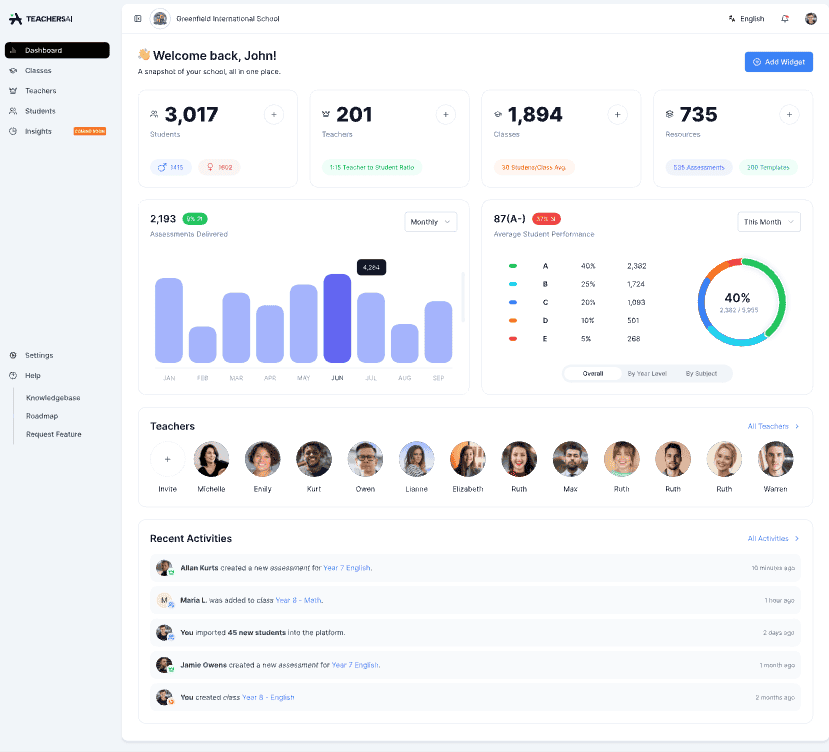
When you log in, you’ll land on the School Dashboard. This is a high-level snapshot of your school’s activity in TeachersAI.
From here, you can see:
Total students, teachers, and classes
The number of assessments and resources in use
Recent activity across the school
Early performance indicators (analytics will expand over time)
This dashboard is designed for visibility, not configuration. You are not expected to act on everything you see here immediately.
Core Navigation for School Admins
Your main admin tools are accessed from the left-hand menu:
Dashboard – School-wide overview
Classes – Where teaching and assessment happens
Teachers – Manage staff access and status
Students – Manage student enrolments
Insights – Coming soon
Settings – Admin-only configuration areas
As an admin, you will move most often between Teachers, Students, Classes, and Settings.
Managing Teachers
The Teachers section is where you manage who has access to your school’s TeachersAI account.
From here you can:
Add and remove teachers
See which teachers are active or inactive
View how many classes and students are assigned
Identify onboarding gaps using profile completion indicators
Your responsibility is to manage access and roles.
Teachers are responsible for creating assessments, marking work, and working with students.
Understanding Classes (How Everything Connects)
Classes are the backbone of TeachersAI.
A class connects:
Teachers
Students
Assessments
Results and feedback
Who creates classes?
School Admins can create classes
Teachers can also create classes
This gives schools flexibility while usage patterns are established. You may choose to centralise class creation or allow teachers to manage their own.
Ensuring classes are structured correctly early will prevent reporting and grading issues later.
Add your school logo
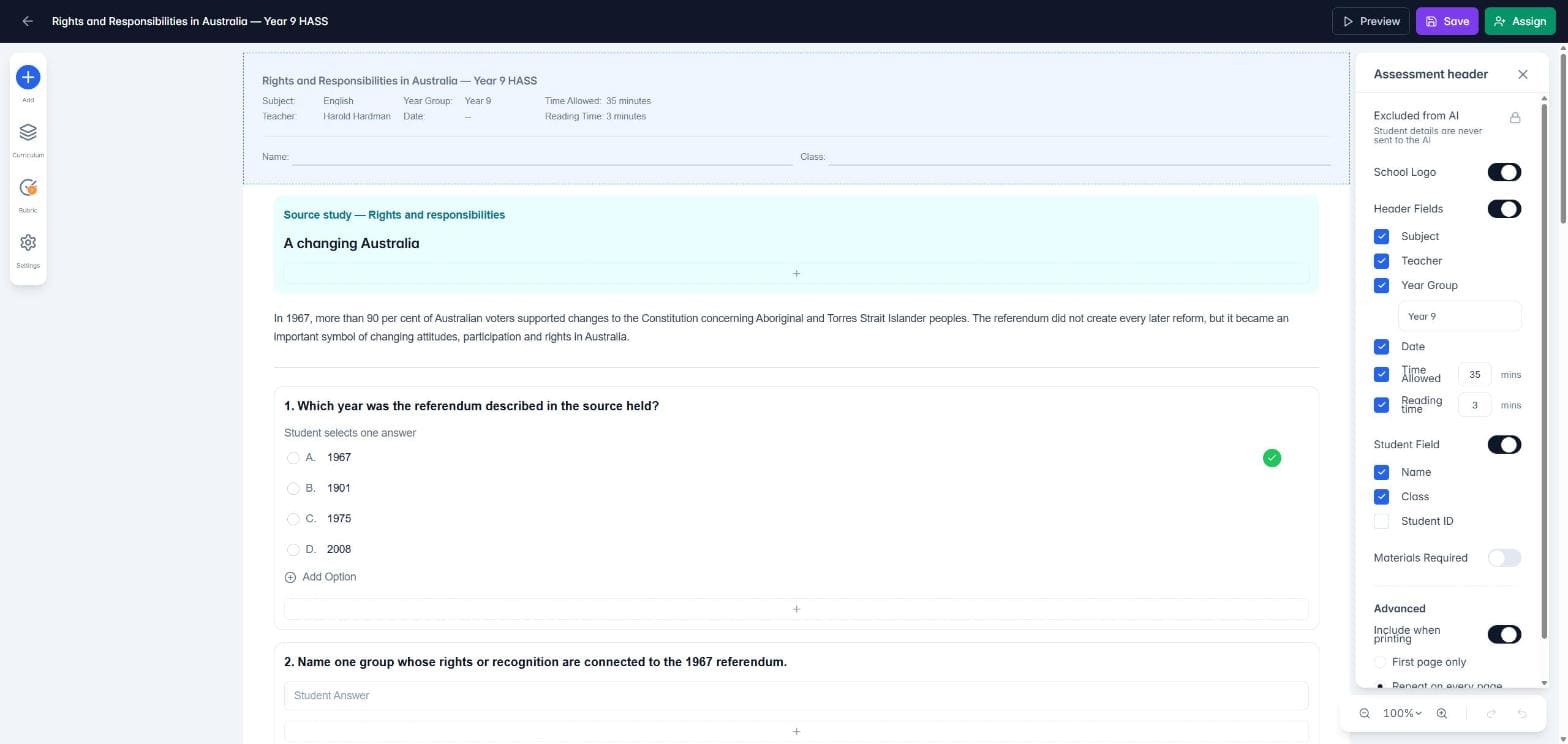
Your school logo appears in the header of your school's assessments, on screen and on printed papers. Only School Admins can add or change it.
Go to Settings and open Personal Info.
Scroll down to the Branding section, below your profile and account details.
Click Upload Photo and choose your logo file.
To change the logo, upload a new one. To take it off, click Remove photo. If no logo is set, assessment headers simply show no logo.
Teachers can still hide the logo on a single assessment. In the builder, they click the assessment header and switch School Logo off. (See below)
What to Do First (Recommended Order)
When setting up TeachersAI for your school, we recommend this sequence:
Confirm your school details
Upload your school logo (see Add your school logo above)
Add or confirm teacher accounts
Review or create class structures
Add students (manually or via bulk import)
Allow teachers to begin using the platform
You do not need to configure every option before teachers start working.
What Can Wait
You do not need to:
Understand every assessment or rubric
Review every piece of teacher feedback
Configure advanced reporting immediately
Dive deeply into analytics (these will expand over time)
TeachersAI is designed so schools can start small and scale usage naturally.
Summary
As a School Admin, your role is to enable teaching, not manage it day to day.
Set up the structure, give teachers access, and let TeachersAI handle the rest.