

Role: Teacher
Estimated time: 2–3 minutes
Set the start and due date when you assign
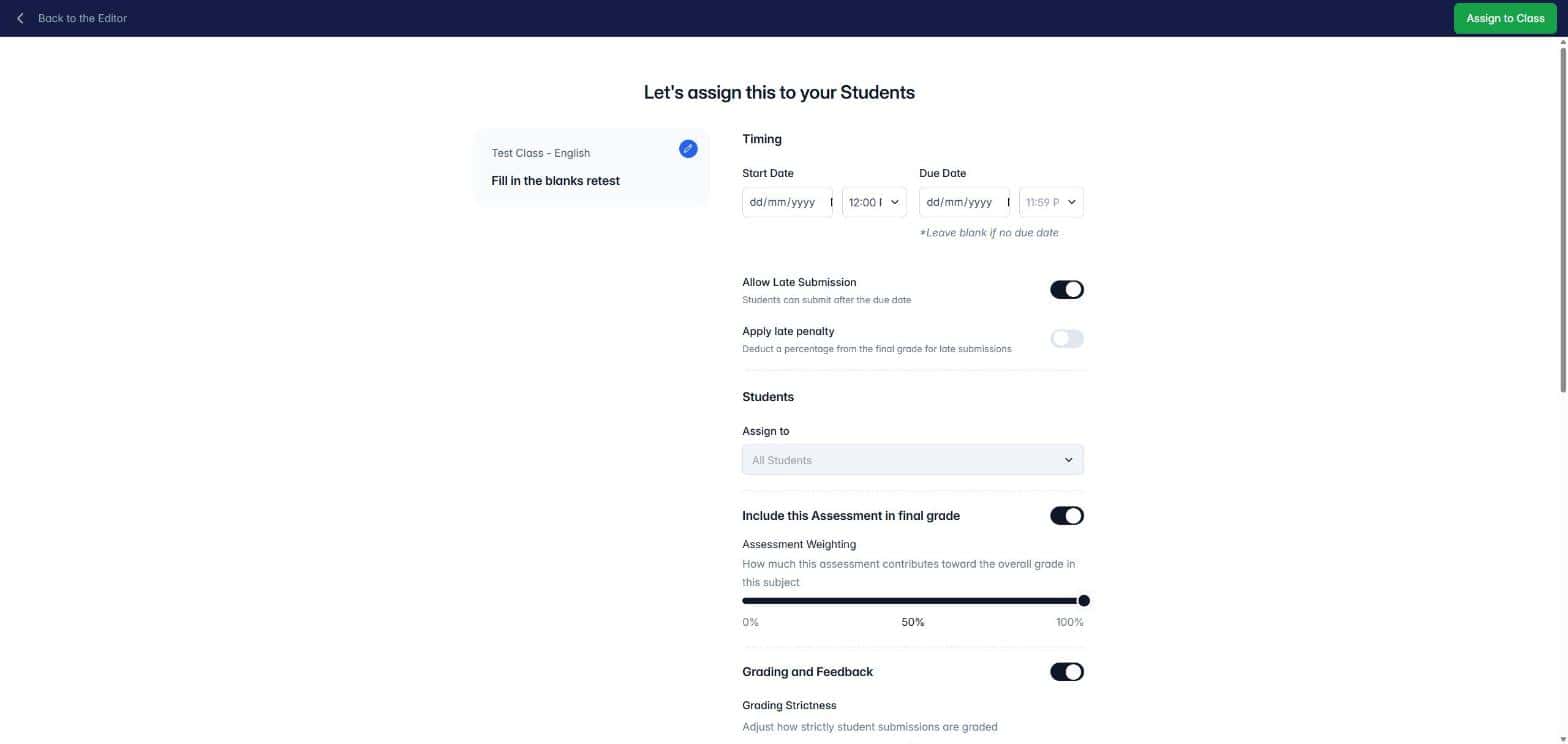
In the Assessment Builder, click Assign (top right). The Deliver to Student screen opens.
Under Timing, set a Start Date and time if students should not open the assessment straight away. Leave it blank to open it immediately.
Set a Due Date and time if the assessment needs a deadline. If you set a date but no time, it closes at 11:59 PM that day. Leave it blank for no due date.
Turn on Allow Late Submission if students can still submit after the due date. Turn on Apply late penalty only if you want a percentage taken off the final grade for late work.
Click Assign to Class.
The due date must be after the start date.
What students see before the start time
A scheduled assessment appears on the student's class page with a Scheduled badge and the date it opens. Students can see it is coming, but they cannot open, answer or submit it until the start time.
Change the due date for a live assessment
Go to Assessments, open the Assigned tab and open the assessment.
Click Set due date (or the current due date) under the assessment title.
Choose the new date and time and check the timezone.
Click Save.
To remove the due date, clear the date and time, then click Save.
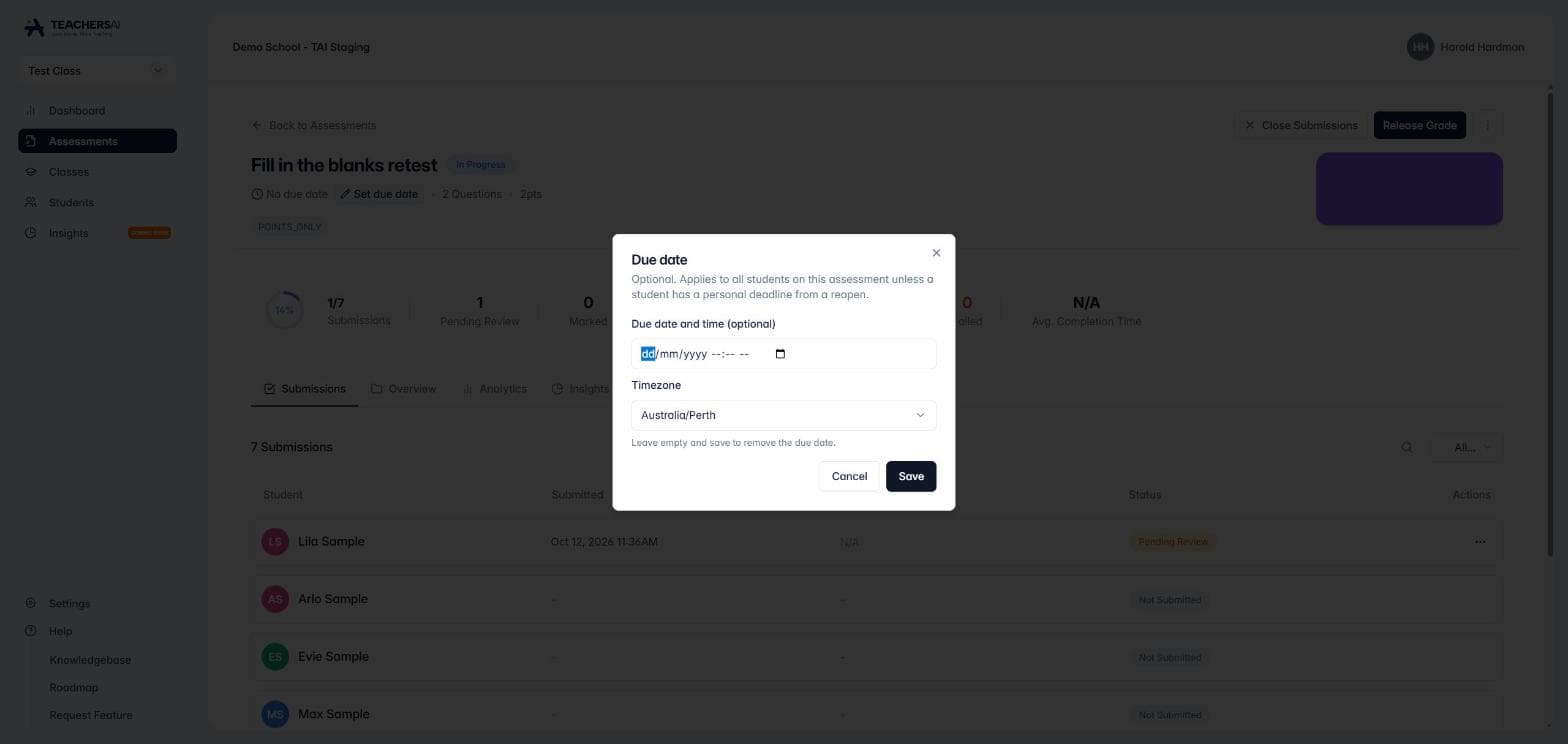
The new due date applies to every student on the assessment, except a student who has their own deadline from a reopen.
Give one student more time
If a student's work has been released and they need another go, open their submission and choose Re-open for submission. Enter a reason and a new due date for that student only.
On the assessment's submissions list, the student shows as Reopened with their own due date, and any Late flag is checked against that personal deadline, not the class one. See How do I reopen an assessment for resubmission? for the full steps.
Good to know
A due date is optional.
Changing the class due date does not change or remove work students have already submitted.
Times follow the timezone shown in the due date window.
Individual deadlines are useful when one student needs extra time but the rest of the class keeps the original date.